Analytics
The Analytics page is your central hub for call history, recordings, and voicemail. Access it by clicking Analytics in the sidebar.
Call History
The Call History tab shows a complete record of every call on your phone system for the selected month.

- Month - Pick the month you want to look at. The list only goes back as far as your account does.
- Settings - Opens the Call History Settings, where you can give every new call a public link automatically. Shown to owners, managers and admins.
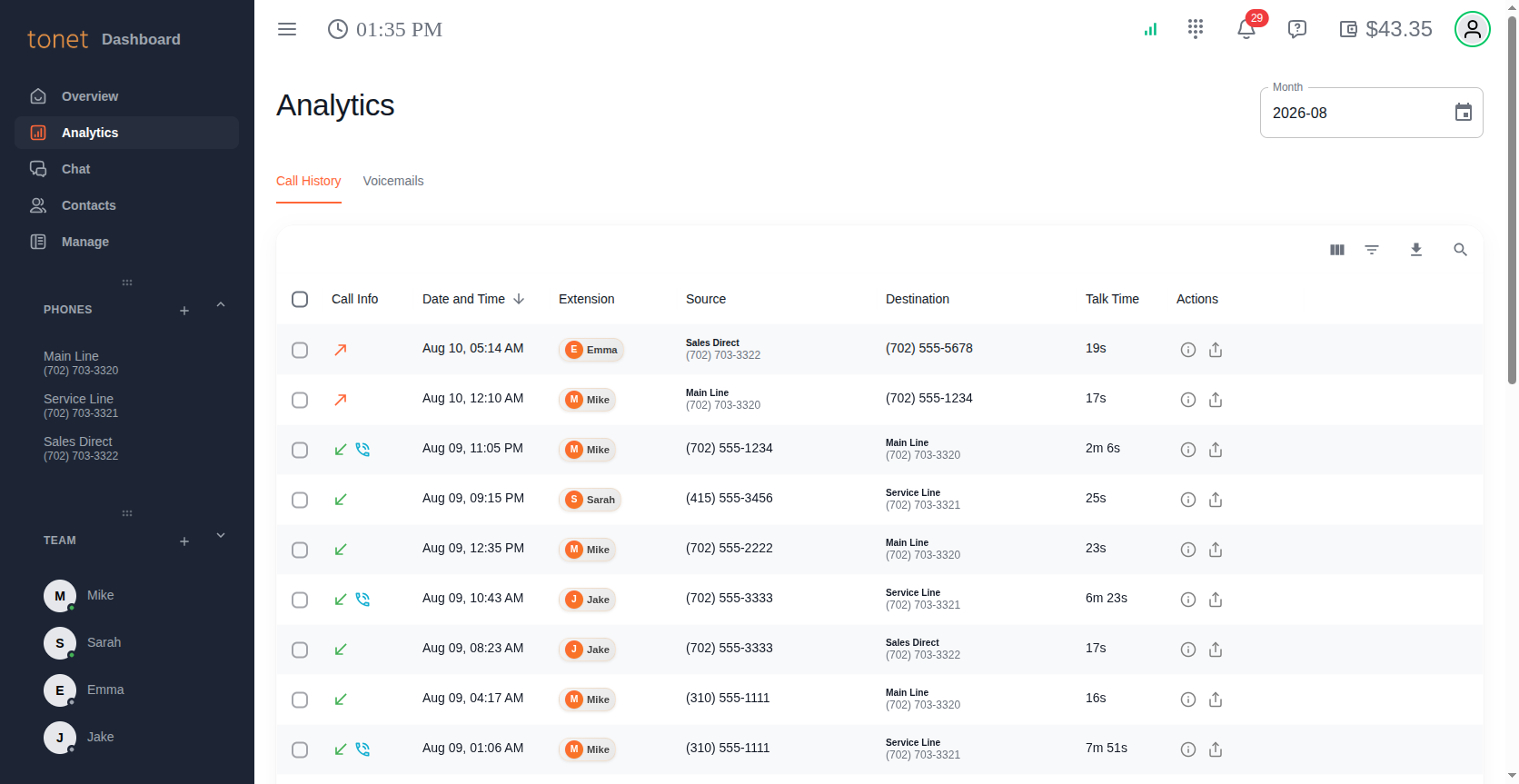
Reading the Call Log
Each row represents one call:
- Call Info - Icons showing:
- Incoming call (green arrow pointing down-left)
- Outgoing call (orange arrow pointing up-right)
- Call was answered
- Call failed - hover to see the exact reason the call failed (see Call Failure Reasons below)
- Date and Time - When the call occurred, displayed in your account's timezone
- Extension - The team member or group who handled the call, shown with their avatar and name
- Source - Where the call came from (phone number and/or line name)
- Destination - Where the call went to
- Talk Time - Duration of the actual conversation
- Billing Duration - The billable duration (can be shown/hidden via column settings)
- Total Duration - Full call duration from start to end, including ringing
- Actions:
- Info - view call details
- Share - create a public link to the call. The icon is grey when the call has no link and orange when it does.
- Play - play the recording inline
Inline Recording Playback
Click the play button on any recorded call to listen to it directly in the call history view. An audio player appears at the top of the page with standard playback controls. If a recording has been deleted, the play button appears with a strikethrough.
Call Failure Reasons
When a call fails, Tonet shows you the specific reason why - not just "missed" or "failed." Hover over the icon to see it.

The reason is the SIP response the carrier sent back. The ones you will see most often:
- SIP 404 Not Found / SIP 404 Destination Not Found - The number you dialed doesn't exist or isn't reachable
- SIP 486 Busy Here / SIP 486 User Busy - The person you called is already on another call
- SIP 503 Service Unavailable - The carrier on the other end couldn't take the call. Usually temporary, try again in a minute.
- SIP 603 Decline - The call was rejected before it rang
- SIP 603 Network Blocked - The carrier actively blocked the call. Under the FCC's 2026 mandate (opens in a new tab), carriers must return a 603 response with a reason when they block a call based on analytics, so you can see exactly why your call was blocked and take action.
- SIP 403 Barred Country - Calls to that country are not enabled on your account. Contact support@tonet.ai to enable it.
The same reason is included in the Fail reason column when you export your call history.
Why this matters: Most phone providers just show "Missed" or "Failed" with no explanation. Tonet gives you the actual technical reason a call didn't connect, so you can tell the difference between a customer who was busy, a number that doesn't exist, and a carrier that blocked your call. This level of detail is critical when troubleshooting call delivery issues.
Toolbar
The icons in the top-right corner of the table:
- Column toggle (grid icon) - Show or hide columns. Useful for adding Billing Duration or Total Duration, or hiding columns you don't need. Your visibility preferences are saved between sessions.
- Filter (funnel icon) - Filter calls by direction, user, phone number, date range, or disposition (answered, missed, busy). The filter also drives the Matching the current filter option when selecting calls and exporting.
- Search (magnifying glass) - Search across all call fields. Supports phone numbers with or without dashes.
You can also resize columns by dragging their edges - your column widths are saved between sessions. To download your call history, use the Export CSV button above the table (see Export to CSV).
Selecting Calls
Every call can be selected, either with the checkbox on its row or in bulk with the Select button above the table:
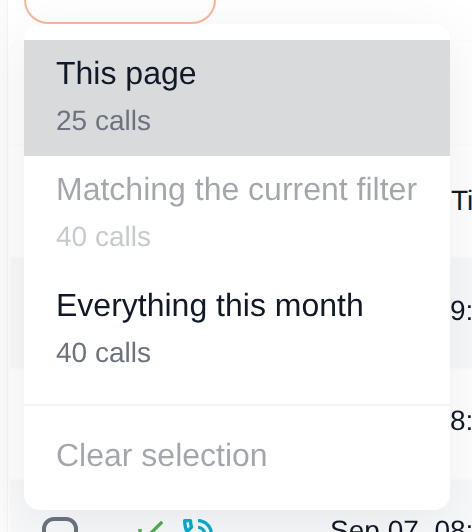
- This page - The calls currently shown on this page of the table
- Matching the current filter - Every call that matches the active filter, across all pages. Only available while a filter is on.
- Everything this month - Every call in the selected month
- Clear selection - Deselect everything
Once calls are selected, the button shows the count and the bulk actions appear next to it:

- Create public links - Gives every selected call a public link to its details, recording and transcript. Calls that already have a link keep the one they have. Owners, managers and admins only.
- Remove N links - Removes the public links of the selected calls. The count shows how many of the selected calls have a link. Owners, managers and admins only.
- Delete N recordings - Permanently deletes the audio of the selected calls. The count shows how many of the selected calls have a recording. Only shown when recording deletion is enabled on your account (contact support@tonet.ai).
- Export CSV - Always available, with or without a selection. See Export to CSV.
Changing the month clears the selection.
Deleting Recordings
Select the calls and click Delete N recordings. You are asked to confirm first:
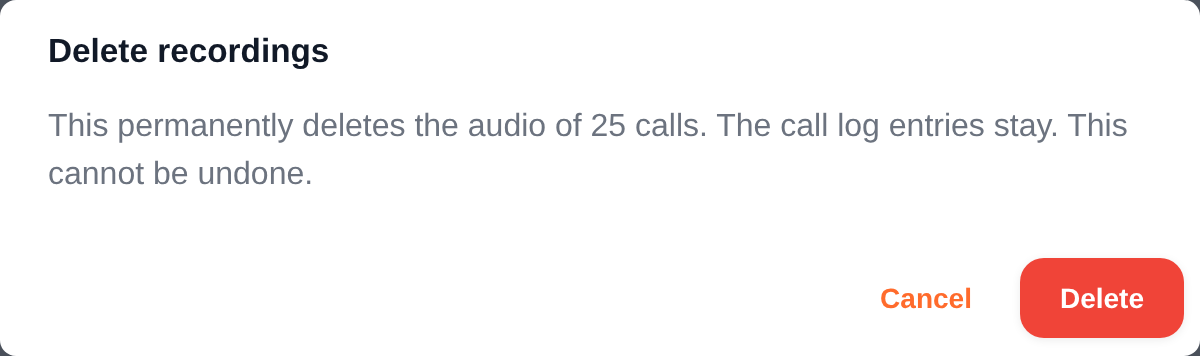
Only the audio is removed. The calls stay in your history with all their details, and their play button shows a strikethrough. The Recording column of an export shows Deleted for these calls. There is no way to get a deleted recording back.
Export to CSV
Click Export CSV above the table to download your call history as a spreadsheet, for reporting, record-keeping, or to hand to your accountant.
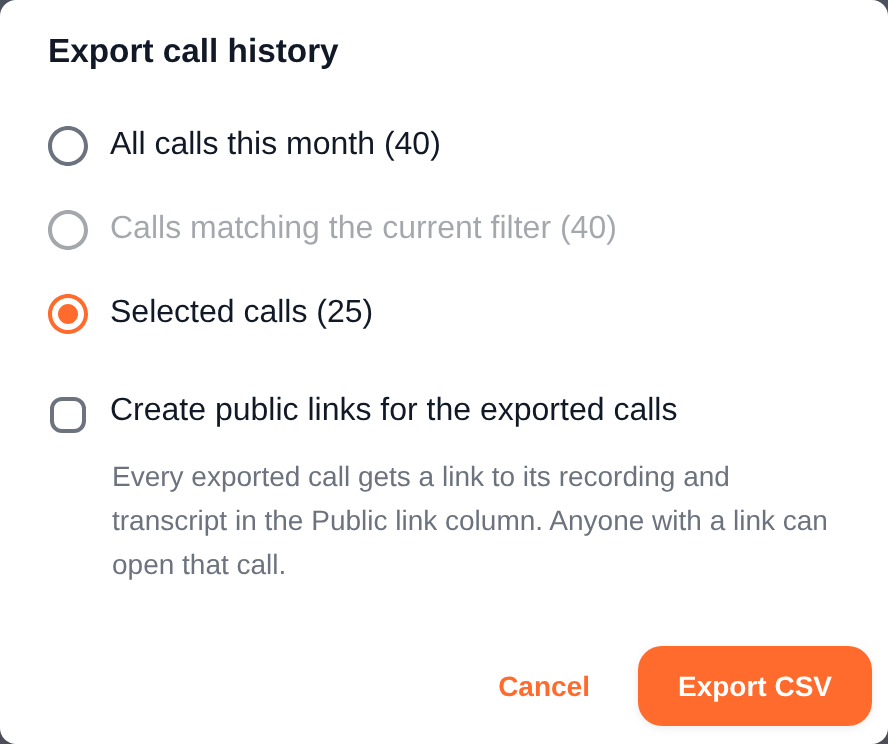
Pick what to export:
- All calls this month - Everything in the selected month
- Calls matching the current filter - Only what matches the active table filter
- Selected calls - Only the calls you selected
Tick Create public links for the exported calls to give every exported call a public link first. The links land in the Public link column, so anyone reading the spreadsheet can open a call's recording and transcript straight from it. Owners, managers and admins only.
The file is named tonet-calls-YYYY-MM.csv, has one call per row, newest first, with times in your account's timezone. The columns:
| Column | What it contains |
|---|---|
| Date, Time | When the call started (YYYY-MM-DD and 24-hour time) |
| Direction | Incoming or Outgoing |
| Answered | Yes or No |
| Status | The call status as recorded by the phone system |
| Fail reason | The failure reason, for example SIP 404 Not Found. Empty for calls that connected. |
| Extension, Extension name | The team member on your side of the call |
| Group | The ring group the call went to, if any |
| Source number, Source name | Who called. The name is filled in for your own numbers. |
| Destination number, Destination name | Who was called. The name is filled in for your own numbers. |
| Talk time (seconds) | Length of the conversation |
| Billing duration (seconds) | The billable duration |
| Total duration (seconds) | From the first ring to hangup |
| Recording | Yes, No, or Deleted |
| Public link | The call's public link, if it has one |
The file opens directly in Excel, Google Sheets or Numbers.
Call History Settings
Click Settings at the top of the page (owners, managers and admins) to open the Call History Settings.
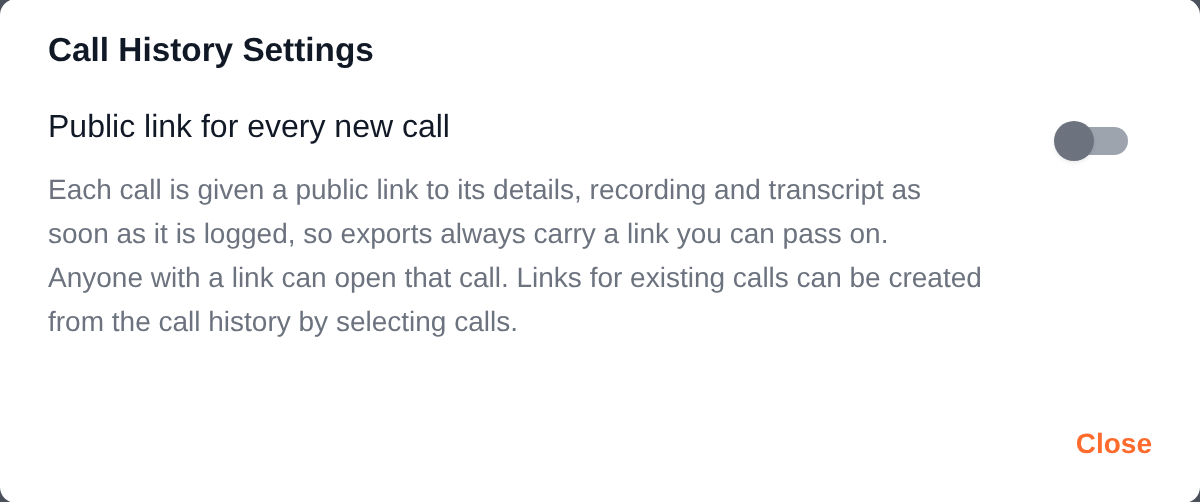
Public link for every new call - When this is on, each call gets a public link to its details, recording and transcript as soon as it is logged. Every export then carries a link for every call, and the share icon on every new row is already orange. Anyone with a link can open that call, so leave this off if your recordings should stay behind the login.
Turning it on does not touch calls that are already in your history. To give those a link, select them and click Create public links.
Storage
At the bottom of the call history, you can see the total storage used by your call recordings.
Call Details
Click the Info button (ℹ) on any call to open the full call detail page. This is where you get the complete picture of a call - recording, transcript, quality metrics, and metadata.
Recording and Playback
The audio player at the top lets you listen to the full call recording with standard controls (play, pause, seek, volume).
Interactive Transcript
Tonet transcribes your calls using AI, so you can read conversations instead of listening to them. The transcript is interactive - click any word to jump to that moment in the recording.
If the call was recorded and transcribed, the transcript appears below the player with these features:
- Audio-synced highlighting - As the recording plays, the current word is highlighted in real time so you can follow along
- Click-to-seek - Click any word in the transcript to jump the audio to that exact moment
- Auto-scroll - The transcript automatically scrolls to follow playback. Toggle the follow button to enable or disable auto-scroll, or just scroll manually to browse the transcript while audio plays.
- Speaker labels - The transcript is organized by speaker and timestamp for easy reading
Call Information
The detail page shows three information panels:
Time Details:
- Date and time of the call (UTC)
- Total duration
Contact Information:
- From: Source phone number or extension
- To: Destination phone number or extension
Call Status:
- Status: Answered or failed (with reason if failed)
- Direction: Incoming or outgoing
- Disposition: ANSWERED, NO ANSWER, BUSY, etc.
Call Quality Metrics
Call quality metrics help you diagnose audio issues. If a customer reports choppy audio or dropped words, check the quality metrics for that call to see if the issue was network-related.
When quality data is available, the detail page shows:
- Severity badge - Overall quality rating: Good, Fair, Poor, or Unknown
- Packet Loss (inbound and outbound) - Percentage of lost packets. High packet loss (above 2%) causes choppy or missing audio.
- Jitter - Variation in packet arrival time, in milliseconds. High jitter (above 30ms) causes robotic or distorted audio.
- Latency (RTT) - Round-trip time in milliseconds. High latency causes noticeable delay in the conversation.
- Connection Type - How the call was connected (direct, STUN, or TURN relay)
If issues are detected, a Diagnosis section provides a plain-English explanation of what went wrong and Recommendations for fixing it.
Report a Call
If something went wrong with a call, click Report Call to flag it for review. The button shows how many users have reported the same call.
Voicemails
Click the Voicemails tab to see all voicemail messages left by callers.
Each voicemail shows:
- From - The caller's phone number. Internal callers show their name and extension.
- Received - When the voicemail was left
- Mailbox - Which extension or group mailbox received it
- Duration - Length of the message
- Transcription - The AI-generated text of the voicemail. Click the expand arrow to read the full transcription. Shows "Transcribing..." with a spinner while processing is in progress.
- Listen - Play the voicemail recording
- Remove - Delete the voicemail
Automatic Transcription - Tonet transcribes every voicemail using AI, so you can read messages without listening to them. This is especially useful when you're in a meeting or can't listen to audio. Transcriptions are also included in voicemail-to-email notifications (see Voicemail Settings below).
User and Group Mailboxes
Voicemails are organized by mailbox. Each user has their own voicemail mailbox based on their extension number. Groups also have their own mailbox - when a call to a ring group goes unanswered, the caller can leave a voicemail for the whole group.
You can view voicemails for any mailbox you have access to. Managers and owners can see all mailboxes.
Voicemail Settings
Click the Voicemail Settings button on the Voicemails tab to manage greetings and preferences.
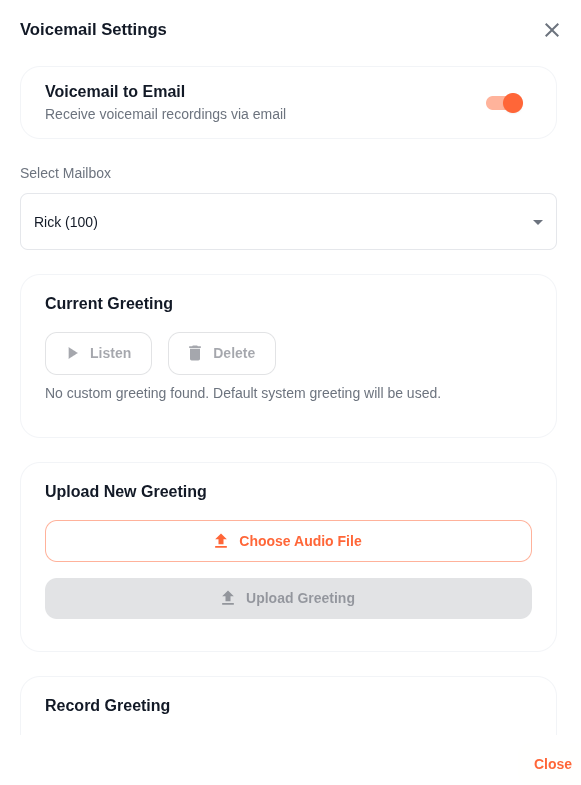
Voicemail to Email
Toggle this on to receive voicemail notifications delivered directly to your email. Each voicemail email includes:
- The audio recording as an attachment
- The AI-generated transcription in the email body - read the message without opening the attachment
- Caller information and timestamp
This means you never miss a message, even when you're away from the dashboard.
Select Mailbox
Choose which mailbox to configure. This dropdown lists your personal mailbox (your extension) and any group mailboxes you manage. Each mailbox has its own greeting.
Greeting Management
- Current Greeting - Listen to or delete your existing custom greeting. If no custom greeting is set, callers hear the default system greeting.
- Upload New Greeting - Upload a WAV or MP3 audio file as your greeting. Record it on your phone or computer first, then upload.
- Record Greeting - Record a greeting directly from your browser using your microphone. Click record, speak your greeting, then save.
Group Greetings - Each group can have its own voicemail greeting. Select the group's mailbox from the dropdown to manage its greeting separately from your personal greeting. For example, your Sales group might say "You've reached the Sales team..." while your Support group says "You've reached the Support department..."
Related
- Call Monitoring - Monitor live calls from the Overview page with Listen In and Whisper
- Call Sharing - Share call recordings and details via secure public links