Groups
Groups let you ring multiple team members at once. Instead of routing a call to a single person, you can route it to a group like "Sales" or "Service Team" - the call rings everyone in the group, and the first person to pick up takes it.
Groups are used throughout your phone system. You can route to them from phone numbers, auto attendant menus, schedules, and calendars.
Go to Manage > Groups to see your groups.
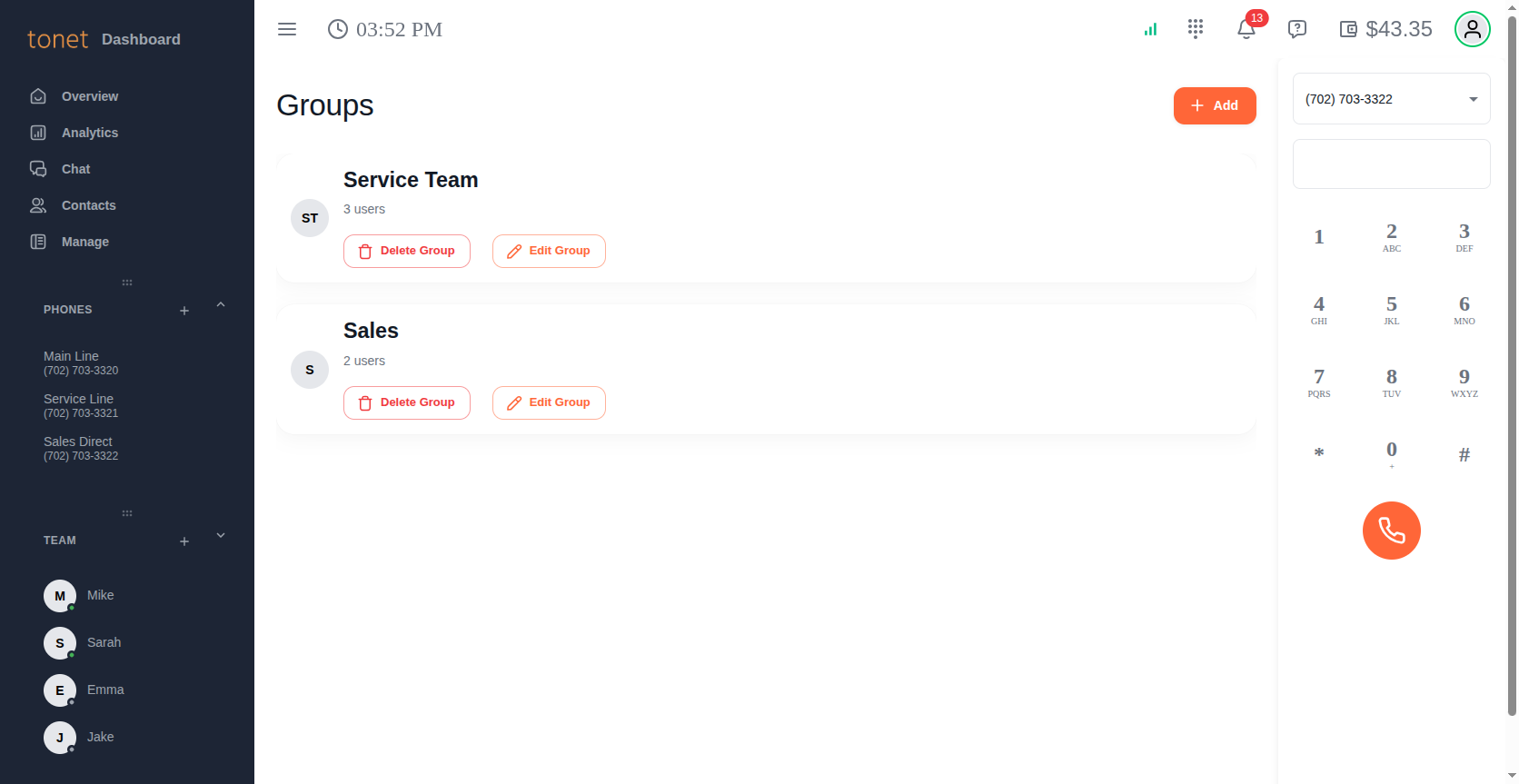
Group List
Each group is displayed as a card showing:
- Avatar - The group's initials
- Name - The group name (e.g. "Sales", "Service Team")
- Member count - How many users are in the group
- Edit Group - Opens the group editor to change members, name, or call queue settings
- Delete Group - Removes the group after a confirmation prompt
Click + Add in the top right to create a new group.
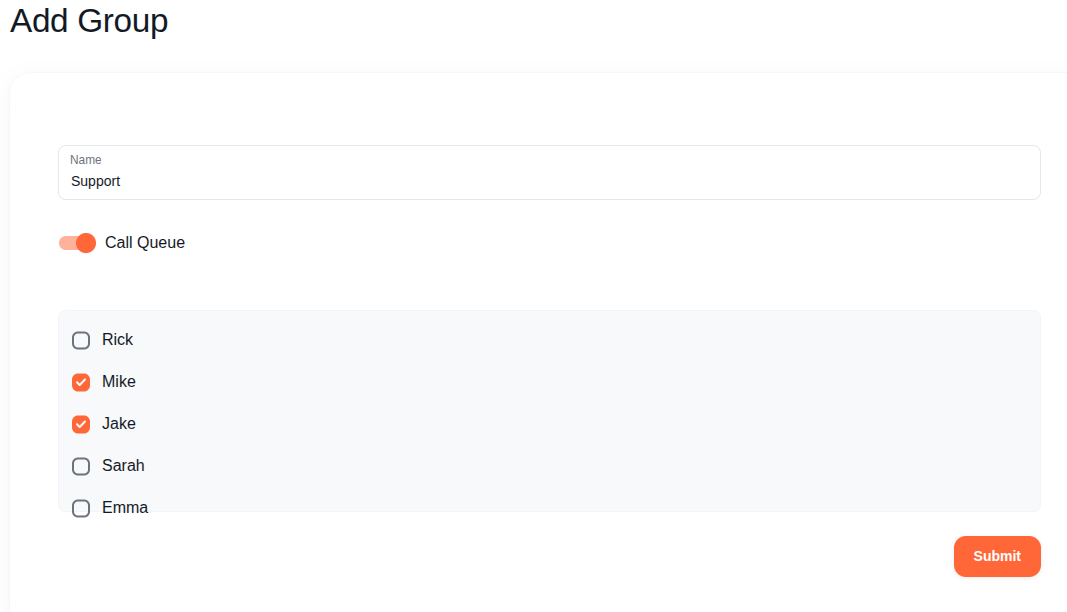
Creating a Group
The group form has three fields:
- Name - A descriptive name for the group (e.g. "Customer Service", "Sales", "After Hours Support")
- Call Queue - Toggle this on to queue callers when all group members are busy (see Call Queue below)
- Users - Check the box next to each team member you want in this group. You can add as many users as you need.
Click Submit to save the group.
To edit an existing group, click Edit Group on its card. The same form opens with the current settings pre-filled.
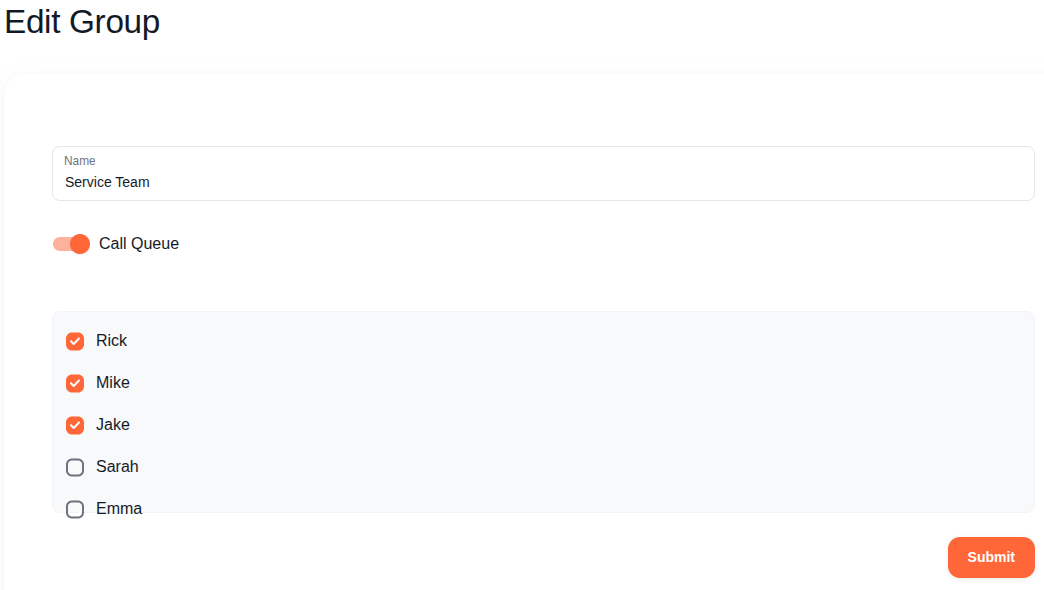
Call Queue
When Call Queue is off, an incoming call rings all group members simultaneously. If nobody picks up, the call goes to the group's voicemail.
When Call Queue is on, callers are placed in a queue if all group members are currently on other calls. The caller hears hold music and a message letting them know they're in a queue. As soon as a group member finishes their current call, the next queued caller is connected automatically.
If all group members are offline (not logged in), the call goes directly to the group's voicemail.
Call Queue is especially useful for support and sales teams. Without it, a caller who rings in while everyone is busy gets sent straight to voicemail. With it, they wait in line and get connected to the next available person.
Group Voicemail
Every group gets its own voicemail mailbox, separate from each member's personal mailbox. When a call to the group goes unanswered (or all members are offline), the caller can leave a voicemail for the group.
Group voicemails appear in the Voicemails tab under Analytics, labeled with the group's mailbox number.
You can record a custom greeting for each group's voicemail. Go to Voicemail Settings and select the group's mailbox from the dropdown. For example, your Sales group might say "You've reached the Sales team at Summit Plumbing, please leave a message" while your Service Team says something different.
Deleting a Group
Click Delete Group on any group card. A confirmation dialog asks you to confirm before the group is permanently removed.
Before deleting a group, check if any phone numbers, auto attendant menus, or schedules are routing calls to it. Deleting a group that's still used as a route destination will cause those calls to fail.
Using Groups in Call Routing
Groups become powerful when combined with other routing features:
- Phone numbers - Set a phone number's default destination to a group so all incoming calls ring the team
- Auto Attendant - "Press 1 for Sales, Press 2 for Support" - each key routes to a different group
- Schedule - Route calls to your Sales group during business hours and your After Hours group in the evening
- Calendar - On holidays, route calls to a skeleton crew group instead of the full team