

Desk phones: connect any SIP phone to Tonet
Find your SIP details (User Name, Password, Domain, STUN) in Manage › Users, then follow the setup guide for your Yealink or Grandstream phone.
Any desk phone that supports SIP works with Tonet: Yealink, Grandstream, Polycom, Cisco and others. You copy four details from the dashboard into the phone's web page: User Name, Password, Domain and STUN.
Find your SIP details
Each person has their own SIP details, in the dashboard:
- Go to Manage › Users.
- Click the person, or open their ⋯ menu and click View.
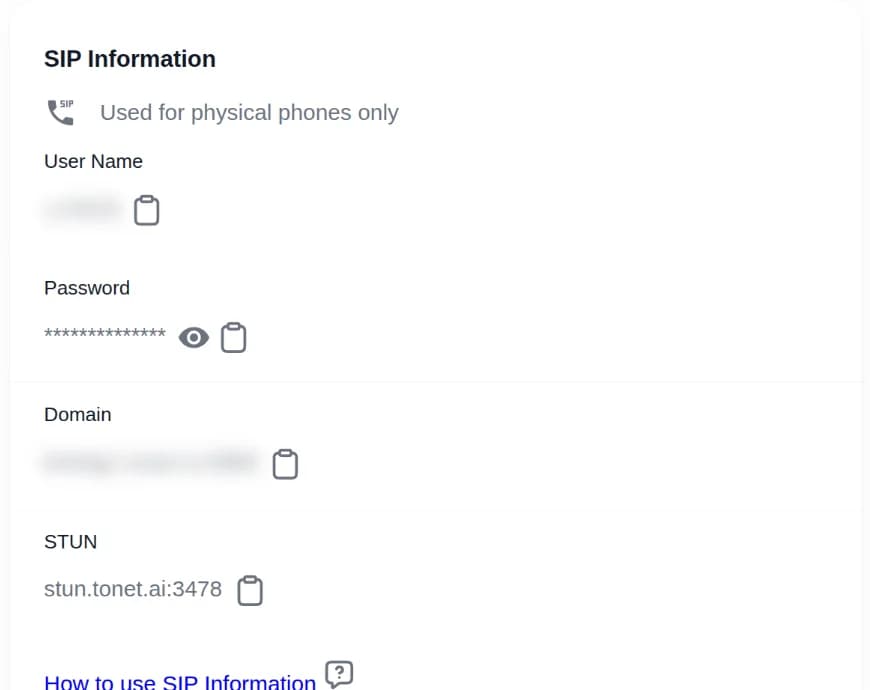
- Find the SIP Information box. Each value has a copy button. The password is hidden: click the eye to show it.
| In SIP Information | What it is | Where it goes in the phone |
|---|---|---|
| User Name | The line's ID: a u and a number, like u12345. It isn't the extension. | The user name, and the authentication ID if the phone asks for one |
| Password | The line's password | The password |
| Domain | Your phone server and its port, written server:port | The SIP server. Grandstream phones take the whole value. Yealink phones split it into Server Host and Port. |
| STUN | stun.tonet.ai:3478 | The STUN server. See STUN server and port. |
Copy the whole Domain, including the number after the colon. That number is your port.
Who can see SIP details
| Role | Sees SIP Information for |
|---|---|
| Owner | Everyone |
| Manager | Everyone except the owner |
| Administrator | Only themselves |
| Regular User | Nobody. Regular users can't open Manage, so ask the owner or a manager. |
Each line on a desk phone signs in as one person. To set up a phone for someone new, add them in Users first.
STUN server and port
Tonet's STUN server is stun.tonet.ai, port 3478. The dashboard shows them together as stun.tonet.ai:3478.
Turn STUN on in every desk phone, and set the phone's account to use it. For one-way audio or no audio on a device behind a router, the first fix Grandstream lists is turning on STUN.
Port 3478 is the standard STUN port, and the default STUN port on Yealink phones.
Setup guides
Pick your phone to see only its steps, with your Domain split the way it wants it:
- Open the phone's web page. In a browser on the same network, go to https:// and the phone's IP address. If the browser warns about the connection, click Advanced and continue.
- Sign in. Sign in with admin / admin. The first time, the phone makes you set a new password.
- Enter your Tonet line in Account › Register, then Account 1:
Click Confirm.Line Active Enabled Label The person's name Display Name The person's name Register Name The User Name from SIP Information User Name The User Name from SIP Information Password The Password from SIP Information Server Host (SIP Server 1) The Domain, up to the colon Port (SIP Server 1) The number after the colon - Turn on STUN.
- Network › NAT: set STUN Active to Enabled, STUN Server to stun.tonet.ai and STUN Port to 3478. Click Confirm.
- Account › Register, Account 1: set NAT to STUN. Click Confirm.
- Check that it registered, then call another extension. What to look for
| Phone | Guide |
|---|---|
| Yealink T33G | Set up the T33G |
| Yealink T46U | Set up the T46U |
| Yealink T54W (Wi-Fi) | Set up the T54W |
| Yealink T26P (older model) | Set up the T26P |
| Grandstream GRP2612 | Set up the GRP2612 |
| Grandstream GXP2130 | Set up the GXP2130 |
| Grandstream GXP2170 | Set up the GXP2170 |
| Grandstream HT801 or HT802, for regular (analog) phones | Set up the HT801 or HT802 |
Other Yealink models. Yealink uses one firmware for each of these groups, so the phone's web page is the same as in the guide:
Finding the IP address on the phone itself can differ by model.
Another brand? In the phone's account (or line) settings, enter the four details above, turn on STUN, and check that the account shows as registered. Stuck? Email support@tonet.ai with the phone's make and model.
Buy a phone that's ready to use
Tonet sells Yealink desk phones that arrive with your number and extension already loaded. Plug in the network cable, or just the power for a Wi-Fi model, and the phone registers by itself.
- Models and prices: tonet.ai/desk-phones.
- To order, email support@tonet.ai or use the chat on that page. Say how many desks, who sits where, and which phone.
- Phones ship to addresses in the continental US.
Phone not working?
Next step
Add the person the phone is for, copy their SIP details, then open the guide for your phone.