

Overview: today's calls, live calls and your tasks
What the Overview page shows: today's or this month's calls and texts, who's online, live calls to listen in on, your tasks, and what Tonet noticed.
Overview is the home page of the dashboard. It shows your calls, texts and tasks for today or this month, who's online, and what needs you next.
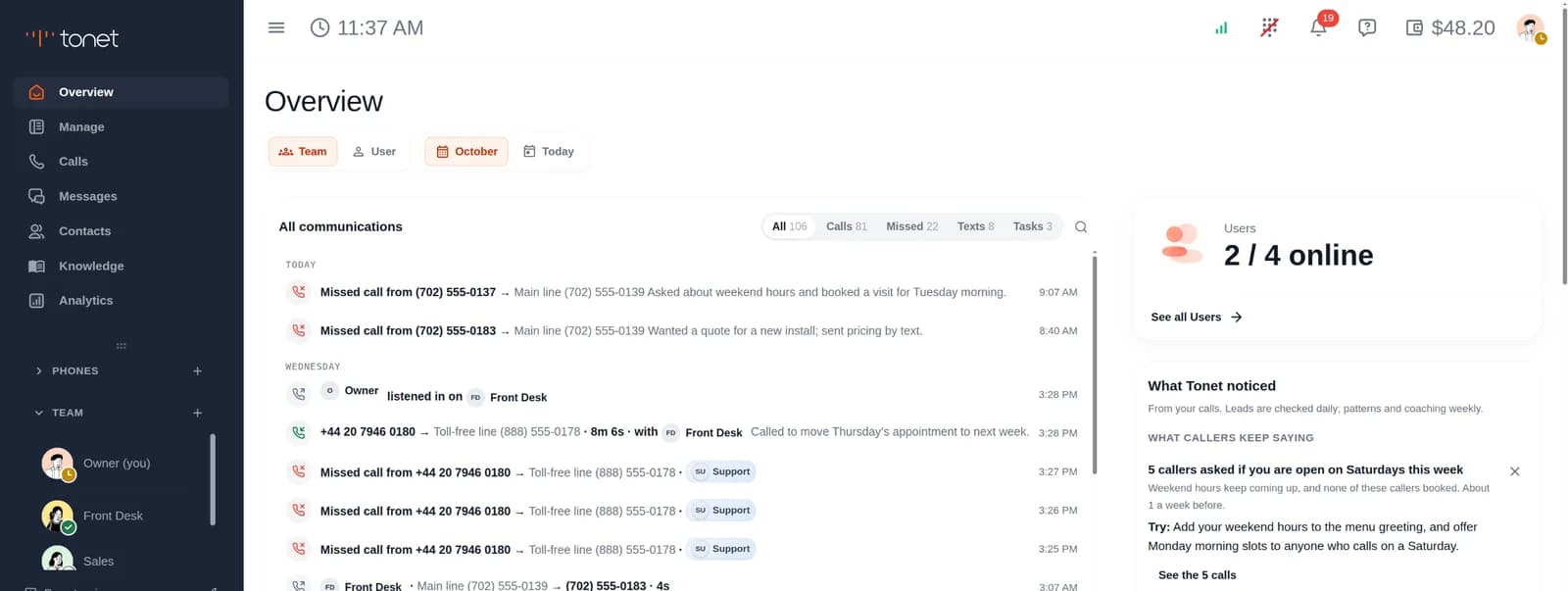
Click Overview at the top of the left menu. Everyone has it.
| Part | What's there | Who sees it |
|---|---|---|
| Welcome! Here's What Happens Next: | Four setup steps, on a new account | Owners and managers |
| Live now | Calls happening right now, with Listen in and Whisper | Owners and managers |
| All communications | Calls, texts and tasks for today or this month | Everyone, for what they can see |
| Users | How many people are online | Everyone |
| What Tonet noticed | Leads going cold, what callers keep saying, and coaching | Everyone. Regular users see their own. |
| Upcoming | Your tasks and reminders | Everyone |
Finish setting up a new account
Owners and managers only.
A new account opens Overview with Welcome! Here's What Happens Next: at the top: four steps, each with a card. A step gets a tick when it's done.
| Step | Click it to | Ticked when |
|---|---|---|
| Top Up | Open Billing. The card shows your balance. | Your balance is above $0 |
| Get a Number | Open Phones | You have a number, and a balance above $0 |
| Create Users | Open Users. Your own user was made for you. | Same as Get a Number |
| Start calling | Open the phone. See Make and take calls. | A call was made or taken this month |
The steps don't go away by themselves, even with all four ticked. Click Dismiss Forever at the bottom right to hide them. That hides them for the whole account, for every owner and manager.
See today's or this month's activity
At the top of the page, click Today or this month's name. Today is the default.
- Today starts at midnight, and the month on the 1st, in your account's time zone.
- This browser remembers your choice.
Owners and managers also have Team and User:
| Choice | Shows |
|---|---|
| Team | All the calls and texts you can see |
| User | Only yours: calls on your extension and texts you sent |
Read the activity list
All communications lists everything in the period, newest first, grouped by day. Each tab shows how many there are:
| Tab | Shows |
|---|---|
| All | Everything below |
| Calls | Calls in and out |
| Missed | Incoming calls nobody picked up, and calls from a teammate to you that you missed |
| Texts | One line per text conversation per day |
| Tasks | Tasks and reminders for you and your teams |
- Click a call to open it right there: its summary, tags, recording and transcript, when it has them.
- Click a text to open the conversation in Messages.
- Click a task to open it.
- Search: click the magnifying glass and type a name, a number, or words said on a call.
The list shows 60 at a time. Click Show … more at the bottom for the next ones.
Regular users and administrators see the calls they can see: their own and their teams'. See Roles.
Listen in on a live call
Owners and managers only.
When someone on your team is on a call, Live now shows at the top of Overview, with the number of calls. It's not there when nobody else is on a call. It lists calls made or taken in the dashboard or the desktop app. Your own call isn't listed.
Each card shows:
- Whether the call is incoming or outgoing
- Who's on the other end: a contact's name, the number, or a teammate and their extension
- How long the call has been going
- Who on your team is on it
On a card:
| Button | What it does |
|---|---|
| Listen in | Listen to the call |
| Whisper | Talk to your teammate during the call |
| Stop listening or Stop whisper | Ends it |
Both use the phone in your dashboard. You can listen in or whisper on one call at a time; the other buttons wait until you stop. While you're on, a Currently Monitoring bar says who you're listening or whispering to, with a stop button.
Send your teammate a note: type in Add a note for … and press Enter. They see it on their call as you type, and it's saved with the call. Press Esc to take back a note you haven't sent.
See who's online
The Users card shows how many people are online right now, out of everyone on the account, like 3 / 8 online. Online means their status is Available and Tonet is open on one of their devices. See Set your status.
Owners, managers and admins can click See all Users to open Users.
See what Tonet noticed in your calls
What Tonet noticed points out things in your calls worth acting on. It checks for leads going cold every day, and for patterns and coaching every week.
| Section | What it shows |
|---|---|
| Leads going cold | Someone who showed interest on a call in the last 30 days, like asking for a quote or a call back, and hasn't been called or texted for 7 days. A lead with an open task isn't listed. |
| What callers keep saying | Questions, requests, objections, competitors, complaints and lost sales that came up with at least 3 different callers this week |
| Coaching | Each person's strongest habit and biggest gap on this week's calls, compared with the rest of the team. Tonet checks five habits: opening with an introduction, asking about needs, answering objections, proposing a next step, and confirming details back. |
Each item says what Tonet saw, and often what to Try. On an item:
- Click See the call to read the calls behind it, then Open call for one.
- On a lead, click Call back to call them, or Create task to do it later.
- Click × to dismiss it.
Each section shows 3 items. Click Show … more for the rest.
Who sees what: owners, managers and admins see items for the whole team. Regular users see their own leads, their own coaching under Your calls this week, and What callers keep saying. Everyone sees only items built from calls they're allowed to open.
What Tonet noticed is built from your calls. Accounts that chose no AI or no call recording when they signed up see "AI is off for this account." here instead.
Keep track of your tasks
Upcoming lists the tasks and reminders given to you or to a team you're on.
- To do shows what's open. Done shows what's finished.
- Tick a task's box to mark it done. Untick it to reopen it.
- Click a task to open it and change it.
- Click the calendar button to see the month. Days with something due have a dot. Click a day to see what's on it.
Add a task:
- Click +.
- Type What needs to happen?
- If you like, click Assign someone, Contact, Due date or Remind to add them.
- Click Save.
Owners and managers can give a task to anyone or to a team. Everyone else can only make tasks for themselves.
Suggested from calls: click it at the bottom of Upcoming to see follow-ups Tonet found in your calls. Click Review to turn one into a task, or Dismiss to drop it.
Next step
- See every call and voicemail on the Calls page.
- Owners, managers and admins: see answer rates and dials in Analytics.
- Get a pop-up for every call and text: turn on notifications.
Billing and prices
What Tonet costs and how daily charges work. Add funds by card or crypto, use a code, turn on auto-recharge and see what you spent.
The dashboard
What every part of the Tonet dashboard does: the left menu, Phones and Team lists, the top bar, Report an issue, dark mode, and the layout on a laptop or phone.