

Call Analytics: Answer Rates, Missed Calls and Dials
See how fast callers reach a person, which of your dials get answered, and how each person on your team handles calls.
Analytics answers three questions about your calls, one per tab:
| Tab | What it tells you | Calls counted |
|---|---|---|
| Answering | How fast callers reach a person, and who never did | Incoming |
| Dialing | How often your dials get answered, and who to try again | Outgoing |
| Team | How each person is doing | Both, counted separately |
- Who can see it: Owners, Managers and Administrators. They see the whole account: every number, team and person.
- Where: click Analytics, the last item in the left menu. Or open your picture menu and click Usage Data.
Regular Users don't have Analytics. For them, Usage Data opens the Calls page instead.
Pick a period
At the top of each tab, pick Today, Last 7 days or Last 30 days. Last 7 days is the default.
- Today runs from midnight until now.
- Last 7 days and Last 30 days count back from now.
- Days and hours follow your account's time zone, set in Account.
Analytics opens on the tab you used last, on any computer. The numbers don't update on their own: reload the page to include new calls.
Answering: are callers reaching a person?
Every incoming call ends one of four ways:
| Result | What happened |
|---|---|
| Answered | Someone on your team picked up. |
| Missed | It rang a person or a team and nobody picked up. A caller who then left a voicemail still counts as missed. |
| Forwarded | It went to an outside phone. |
| Reached nobody | It ended before it rang anyone, for example in a menu. |
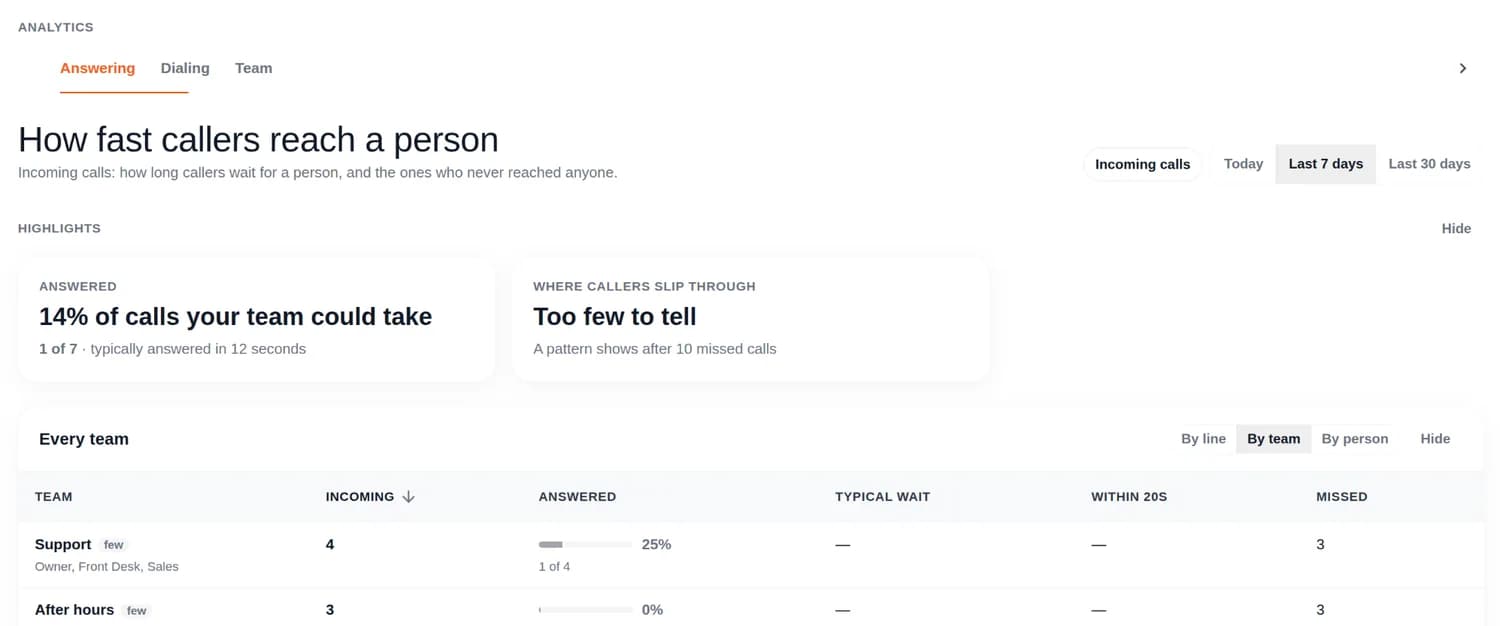
Your answer rate is answered calls out of the calls your team could take: answered plus missed. Forwarded calls and calls that reached nobody are counted beside it, not in it. Voicemail never counts as answered.
The tab has four sections:
- Highlights
- Answered: your answer rate, how many calls were forwarded or reached nobody, and how fast calls are typically answered.
- Where callers slip through: the two hours of the day with the most missed calls, and the team that missed most of them. If everyone on that team was usually on another call then, it says so. Click Ring settings for the team to change it in Teams. This needs 10 missed calls in the period.
- Every team: one row per team, with Incoming, Answered, Typical wait, Within 20s and Missed. Switch to By line to see each of your numbers, or By person. Click a column name to sort.
- Missed callers: one row per caller, newest first. Pick All missed or Left a voicemail. Each row shows when they last called, how many times, which number they called and where the call was headed, and how long any voicemail is. Click Open to see the caller's contact page.
- When calls slip through: missed calls by weekday and hour. This also needs 10 missed calls in the period.
| Column | What it means |
|---|---|
| Typical wait | The middle wait from the moment a call came in until someone picked up. Half of the answered callers waited less. |
| Within 20s | Of the answered calls, the share picked up within 20 seconds |
Dialing: are your dials getting answered?
A dial is an outgoing call to an outside number. A call to a teammate's extension isn't a dial.
| Result | What happened |
|---|---|
| Answered | The other end picked up: a person or their voicemail, the phone network can't tell which |
| No answer or busy | Nobody picked up, or the line was busy |
| Failed | The carrier or the phone system stopped the call |
The tab has four sections:
-
Highlights
- Answered: the share of dials answered, how many weren't, how many failed, and the talk time on answered calls.
- Best time to call: the two hours when your dials get answered most, compared with before noon. This needs 50 dials in the period.
- Not answered yet: how many numbers you dialed 3 or more times and never reached. Click See them for the list.
-
Every person: one row per person, with Dials, Answered, No answer or busy, Talk time, Tonet heard and Call backs owed. Switch to By line or By team. Click a column name to sort.
-
People to try again, in four lists:
- Not answered yet: no dial reached them, and they haven't got through to you since.
- Machine only: every answered dial reached an answering machine, by what Tonet heard.
- Call backs promised: Tonet heard a call back promised on a call, and no later call reached them.
- Asked not to be called: a call with them was tagged Do Not Call. These show Don't call instead of a button.
Click Call, or Call back, to call the number from your Tonet line. On the first two lists, each number also shows Try with the best time to call, once there is one.
-
When dials get answered: the share of dials answered by weekday and hour. This needs 50 dials in the period. If Today has too few, pick Last 7 days or Last 30 days.
Team: how is each person doing?
Pick All calls, Incoming or Outgoing at the top of the tab. The table is called Everyone.
| View | Columns | Highlights |
|---|---|---|
| All calls | Calls (in and out), Answered (in), Answered (out), Talk time, Who talks more | Most calls, Most talk time, Talks the most |
| Incoming | Sent to them, Answered, Typical wait, Missed, Talk time | Answers the most, Typical wait, Misses the most |
| Outgoing | Dials, Answered, Talk time, Tonet heard | Most dials, Most people heard, Answering machines |
Incoming and outgoing calls are kept apart, so a front desk isn't judged on dials, and someone who makes calls all day isn't judged on answering. In All calls the rates aren't colored. Pick Incoming or Outgoing to compare people on the same kind of call.
Who talks more is a person's share of the talking once a call is picked up. It shows their typical share and the range of the middle half of their calls:
| Share | Shown as |
|---|---|
| Over 65% | talks more than listens |
| 35% to 65% | about even |
| Under 35% | listens more than talks |
It counts only calls with a transcript where both sides spoke for at least 5 seconds. Calls that were transferred, forwarded or in a conference are left out, and the page says how many.
What "Tonet heard" means
Answered only means the other end picked up. To tell a person from a machine, Tonet reads the recorded call and puts a label beside the count. A label never changes a count.
| Label | What Tonet heard |
|---|---|
| person | A person was on the call |
| answering machine | A voicemail greeting, or a recording saying the number is disconnected |
| no conversation | A hang-up, a silent call, a wrong number, or a call over within 5 seconds with nothing to read |
| unread | Tonet couldn't read the call |
These labels come from Tonet's AI. If your account chose no AI or no recording when it signed up, answered dials show as unread, or no conversation when very short. Machine only, Call backs promised and Asked not to be called stay empty.
Hide a section you don't use
- Click Hide at the top of the section.
- The section shrinks to a one-line bar. Click Show on it to bring it back.
Hidden sections are saved for you only, on any computer. Tonet counts which sections people hide, show and use, never what's in them.
Why some rates are grey or say "few"
A row with fewer than 10 calls is too few to judge, so its rate shows in grey. On Answering and Dialing the row is also marked few, and on Answering its wait times show as "—".
The legend under each table shows the bands. On Answering they are under 50%, 50–70% and over 70% answered; on Dialing, under 40%, 40–60% and over 60%.
Next step
- See every call and voicemail, with recordings, on the Calls page.
- Missing calls at busy times? Change how a team rings in Teams, or choose where calls go.
- Give someone access to Analytics by changing their role.