

Ask Tonet: get help, run tasks and talk to a person
Ask Tonet is the chat button at the bottom right of the dashboard. Get answers, have it do tasks in your account, or talk to Tonet's support team.
Ask Tonet is the Ask Tonet button at the bottom right of the dashboard. Use it to:
- Get help with Tonet: how something works, or why something isn't working. It's free.
- Run a task: have Tonet do something in your account, or write something for you.
- Talk to a person on Tonet's support team.
Everyone on your account can use it. What it can see and change depends on your role.
- Searching this week’s calls for prices
- Reading the matching transcripts
- Mon 10:12 AM(555) 010-0142“What does a visit cost?”
- Tue 3:47 PMFront Desk → (555) 010-0187“Is the $89 credited if we go ahead?”
- Thu 9:05 AM(555) 010-0163“Do you charge extra on weekends?”
Open Ask Tonet
- Click Ask Tonet at the bottom right of any page. The button changes to Close.
- Under How can we help?, pick Get help or Run a task.
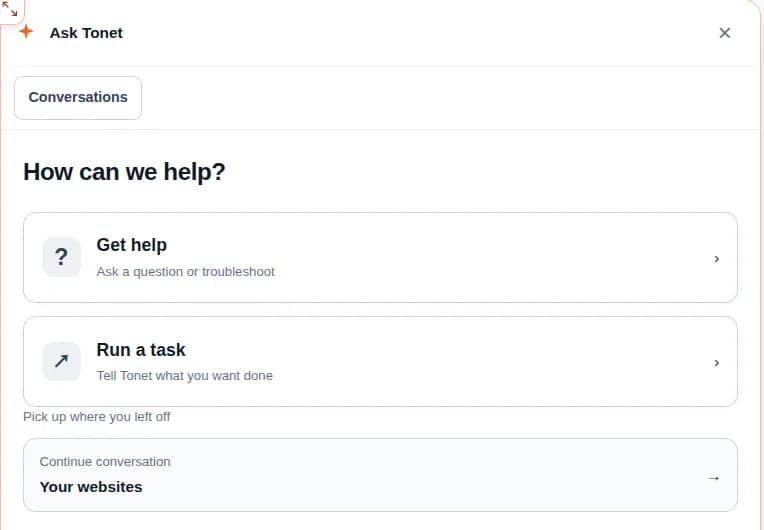
| Choice | Use it to | Cost |
|---|---|---|
| Get help | Ask how Tonet works, or fix something that isn't working | Free |
| Run a task | Have Tonet do something in your account, or write something for you | Counts toward your account's AI use |
A conversation you start any other way, like New conversation, counts as a task.
- On the Messages page the button is hidden. Click ✦ in the top bar instead. ✦ also shows on other pages when you have unread replies, with the number of unread messages.
- Make the window bigger: on a wide screen, drag the handle at its top left corner. Double-click the handle to reset the size.
- Pick up where you left off: reopen Ask Tonet within 5 minutes and you're back where you were. After that it opens on How can we help?, where Continue conversation takes you back.
Get help with Tonet
- Click Ask Tonet, then Get help.
- Type your question, like "How do I send calls to voicemail after hours?"
- Click Start conversation →.
Ask Tonet answers in the chat and points you to the page in the dashboard where you do it.
It can also check your account for common setup problems:
| Your role | What it checks |
|---|---|
| Owners and managers | A balance at $0 or below, no phone numbers, and teams with no members |
| Admins and regular users | Whether you have a number you can text from |
The check reads your settings. It doesn't test calls or sound. Owners and managers can also ask about their balance and what a charge was for.
Get help never changes anything in your account. To have something done, use Run a task.
Have Ask Tonet do a task
- Click Ask Tonet, then Run a task.
- Say what you want in your own words, like "Add extension 104 to the Sales team" or "Find this week's calls where someone asked about prices".
- Click Start conversation →.
Ask Tonet works out the steps and does them. You see what it's doing while it works. Click Stop work to stop it. A step already underway may still finish.
Each change shows under the chat with its result, such as Verified, Already set, Needs attention or Failed. Click it for the details and a Review in Tonet link.
What Ask Tonet can do
Find and check
| Task | Who can |
|---|---|
| Find calls by number, date or words said, up to 90 days at a time, and read their transcripts | Everyone, for calls they can see |
| Count calls and texts, and list missed calls and texts still waiting for a reply | Everyone, for what they can see |
| Show how calls went: how many, how many were answered, talk time and Tonet's call scores | Everyone, for their own calls. Owners and managers see the team. |
| Look up people and extensions, who's online, teams and your numbers | Everyone |
| Look up your menus | Owners, managers and admins |
| Answer questions about your own business, like your prices or hours, from Knowledge | Everyone, when your account has Knowledge |
| Look up a number: who's behind it, from public sources. 5¢ from your balance. A saved result is free. | Everyone |
| Check your balance, explain a charge, or check a port or texting registration | Owners and managers |
Texts and messages
| Task | Who can |
|---|---|
| Text one person, a list of numbers, or your contacts with a tag. See Send texts. | Everyone, from a number they can use that's approved for texting |
| Send a team message from you | Everyone |
| Write emails, replies and promotions, or translate a message | Everyone |
Contacts and tasks
| Task | Who can |
|---|---|
| Add contacts, notes and tags | Everyone, for contacts they can see |
| Change who owns a contact, up to 50 at a time | Owners, managers and admins |
| Create tasks, reminders and calendar events, and change, finish or snooze them | Everyone. Owners and managers can give them to others. |
| Work through the next steps Tonet found in calls: make them tasks, finish, dismiss or reschedule them | Everyone, for calls they can see. Owners and managers can give them to someone else. |
Phone system settings
| Task | Who can |
|---|---|
| Rename a number, change where its calls go, or give it a schedule | Owners and managers |
| Turn call recording on or off for a number | Owners and managers |
| Make a schedule and set its hours | Owners and managers |
| Make a team that rings together or queues callers, or add and remove its members | Owners and managers |
| Choose who can use a number | Owners and managers |
| Fill in a port request as a draft | Owners and managers |
Admins can't change settings through Ask Tonet. They make those changes in Manage.
A port draft is never submitted for you. Open Manage › Phones › Port a Number, add your account number and PIN, and submit it yourself. See Port a Number.
Send texts
Ask in Run a task, like "Text 702-555-0142: we're open until 6 today" or "Text everyone tagged VIP about Saturday's sale".
| How it works | |
|---|---|
| From | A number you can use that's approved for texting. If you can text from more than one, it asks which. A number that isn't approved can't send. See Register for texting. |
| To | Numbers you give it, or your contacts with up to 5 tags. Up to 5,000 people. Each person gets their own text, not a group chat. |
| What | Your exact words, or a text it writes when you ask. Up to 1,600 characters. No pictures or files, and no sending later. |
| Skipped | Numbers that are blocked or opted out on your account, repeats, and the number it sends from. |
| Cost | Your account's usual texting rate, from your balance. If your balance can't cover them all, it doesn't start. |
Progress shows under the chat as Text … recipients, with Draft, Queued, Sending, Paused, Processed or Stopped. Click it to see the message and what the carrier said for each number. Processed means Tonet is done sending; it doesn't prove each text arrived. Click Stop work to stop the texts not sent yet. Texts already sent can't be called back.
To see who a text would reach without sending anything, ask, like "How many contacts tagged VIP would get this?"
When Ask Tonet checks with you first
- It changes things only when you clearly ask. A question, an idea or a request for a draft changes or sends nothing.
- A clear request is enough. It doesn't ask you to confirm it again. That includes texting your own words, sending a reply it wrote to one person, and a 5¢ number lookup, which it tells you about as it runs it.
- A text it wrote for more than one person waits for you. It shows you the text, who gets it and what it should cost, and lists it under the chat as Draft. It sends only after you say so in a new message. There's no button: answer in the chat.
- When something is unclear, like two people with the same name or which number to text from, it asks you first.
Ask Tonet is AI and can misread a request. Check the result under the chat, and talk to a person if something looks wrong.
Let Ask Tonet read your team chat
Your team chat is private. Ask Tonet reads your own team chats only after you click Allow on the card it shows in the conversation. That lasts 2 hours, in that conversation only. Click Don't to say no. It never reads chats you're not part of.
What Ask Tonet can't do
- Buy or release numbers, take payments, add or delete users, delete anything else, or submit a port or texting registration. It tells you where to do these yourself, like Manage › Phones › Add a new Phone Number to buy a number.
- Send pictures or files by text, or schedule a text for later.
- Turn off call recording if your account has to record calls. Talk to a person about that.
- See or change anything your role can't.
- Test your calls. Its checks only read your settings.
Never type passwords, verification codes, card numbers or your port PIN into the chat. Ask Tonet doesn't need them.
Talk to a person
- Open a conversation, or start one with Get help. Click Talk to a person under the message box, or send a message that just says "talk to a person".
- Tonet alerts its support team. You'll see Checking if someone from the team is free…
- If someone sees it, the chat says Someone from the team will be with you shortly. When they join, their name shows at the top.
If no one is free, Ask Tonet stays with you, and the team still sees the chat. Describe the problem in full, and someone replies when they're back. Don't want to wait? Click Answer me now instead.
If someone said they're coming but hasn't written within 2 minutes, Ask Tonet keeps helping until they do.
While a person is in the chat:
- They can see what you type before you send it.
- Your messages show Sent ✓, then Seen ✓✓ once the team has read them.
- They may ask to see your screen. You choose a screen, window or tab. They can see it but not control it. Click Share screen or Not now, and Stop sharing to end it.
- Click Back to Ask Tonet to go back to the AI.
When someone from Tonet writes while Ask Tonet is closed, their message shows in a card above the button. Click Reply to answer, or × to hide it.
You can also email support@tonet.ai.
Ask about a missed call from the bell
In the bell's list, click Ask Tonet under a missed call, voicemail or message. Ask Tonet opens with a request about it already typed: suggest a next step, without texting or calling anyone yet. Change it if you like, then send it. Nothing is sent until you do.
Review in Ask Tonet, at the bottom of the list, asks it to look over your recent missed calls and unread messages and say what needs attention.
Find, rename or archive a conversation
- Click Conversations to see your conversations. Switch between Current and Archived.
- Ask Tonet names each conversation for you. Click Rename to change the name, up to 80 characters.
- Click Archive to put a conversation away. This ends a chat with a person and stops any task in it. Click Restore to pick it up again.
- You can have up to 200 conversations that aren't archived.
Your conversations are your own. Others on your account don't see them. Tonet's support team can.
Why Ask Tonet didn't answer
When Ask Tonet can't reply, it says why. It doesn't pass your question to support on its own, so click Talk to a person if you want one.
| Message starts with | What to do |
|---|---|
| AI is off for this account | Owners and managers: click Turn on AI right in the chat. Everyone else: ask an owner or manager. You can still talk to a person. |
| Your daily … allowance cannot cover this AI reply (or Your account's daily …) | A daily AI limit for you or your account is used up. Click Why this reply was blocked to see which one and when it resets. Limits reset at midnight Eastern. |
| Your shared included AI credit is used | This month's AI credit is used up, so tasks wait until it renews. Get help still works. The owner can check it in your AI settings. |
| AI tasks are unavailable while your account is suspended, locked or has an outstanding balance | Add funds in Billing. Get help still works. |
| This conversation is too long for another AI reply | Start a new conversation. |
| That reply was interrupted | Send your message again, or talk to a person. |
Where your AI settings are
The AI switch, the AI credit and the daily limits are under AI on this account and AI use:
- In Knowledge, on the Your business tab.
- If your account doesn't have Knowledge: in Manage › Account, on the AI tab.
Owners and managers change them. Daily limits are set for the whole account and for each person.
If Ask Tonet won't open
- While it loads, the Tonet mark moves in the window. The first open after an update can take longer.
- If it can't load in 30 seconds, it says Chat could not finish loading. Click Try again, or Email support.
- If your connection drops, the top of the chat says Reconnecting… Your draft is safe. Click Try again if it doesn't come back.
Next steps
- Knowledge: what Ask Tonet knows about your business, and your AI settings.
- Account: account settings for owners and managers.
- Contacts and Teams: the records Ask Tonet can change for you.
- Register for texting: get a number approved so Ask Tonet can text from it.
- Start here: where everything is in the dashboard.
What Tonet AI does
Tonet's AI transcribes and summarizes every recorded call, finds next steps and cold leads, coaches your team, learns your answers and does tasks for you.
Knowledge
Knowledge holds what callers ask and what your team tells them. Where it learns from, how to ask or add an answer, and who can change it.