

Port a number to Tonet
Move a number you already have to Tonet: what to copy from your bill, the form in Manage › Phones, and what each status means.
Porting moves a number you already have from your current provider to Tonet. Your customers keep calling the same number.
Owners, managers and admins can start a port in Manage › Phones › Port a Number.
Before you start
Get your latest bill from your current provider. You'll copy these from it:
- The account holder's name and business name, exactly as the provider has them
- The service address on the account (this can differ from your billing address)
- Your account number
- Your account PIN or passcode. You need it for wireless and VoIP numbers. Ask your provider for a port-out PIN if you don't have one.
- Every number you want to move
You'll also attach proof the numbers are yours: your latest bill showing them, a purchase receipt, or a screenshot of your account.
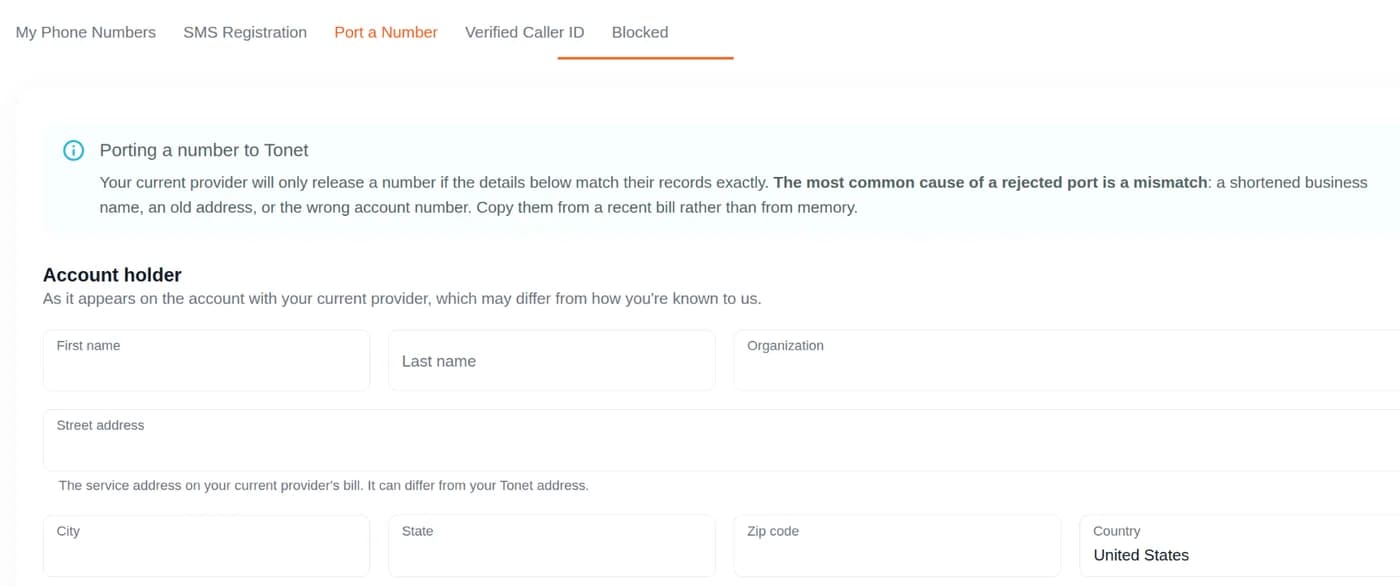
Copy the details from a recent bill, not from memory. A shortened business name, an old address or a wrong account number is the most common reason a port is rejected.
Start a port
- Go to Manage › Phones and open the Port a Number tab.
- Under Account holder, fill in the name, organization, service address, email, and Residential or business.
- Under Current provider, enter the Current service provider, Account number, and Account PIN / passcode.
- Under Numbers to port, add each number and pick its Type: Landline, Toll free, or Wireless or VoIP.
- Under Proof the numbers are yours, click Attach a file.
- Read the Authorization text. Add anything the porting team should know in Additional information.
- Sign in the box, then type your name in Print your full name.
- Click Submit porting request.
Not ready yet? Click Save draft and come back later.
Don't cancel your current service. Your numbers keep working with your current provider until the switch.
After you submit
The Port a Number tab shows where your request is:
Ringing on Tonet. Calls to your number ring in Tonet: browser, apps and desk phones.
You: Call your number to check it rings in Tonet. Only then close anything left with your old carrier.
| Status | What it means |
|---|---|
| Submitted | Tonet has your request and checks it before filing it with the carrier. |
| In progress | Being processed with the carrier. Most ports finish in 7 to 10 business days. The old carrier sets the pace, so no date is guaranteed. |
| More information needed | Read the message, then answer under Messages and click Send reply. You can attach a file. |
| Approved | The numbers show under My Phone Numbers once the transfer finishes. |
| Not approved | Read the reason, fix it, and click Edit and resubmit. |
When the numbers arrive, choose where their calls go and who can use them.
Want calls to reach Tonet before the port finishes? Ask your current provider to forward the number to your Tonet number.
Why ports get rejected
| Reason | How to fix it |
|---|---|
| Name, address or account details don't match | Ask your provider for the exact details on file, then correct the request. |
| Unpaid balance with your provider | Pay what you owe them, then resubmit. |
| Wrong PIN for a wireless or VoIP number | Ask your provider for the correct port-out PIN. |
| The number isn't active | Ask your provider to turn it back on before you resubmit. |
Tip: ask your provider for your Customer Service Record (CSR). It shows exactly how they have your account, so your details match the first time.
Next step
While you wait, you can buy a number and start using Tonet today. Questions about a port? Email support@tonet.ai.
Phone numbers
Buy a local or toll-free number, choose where its calls go, pick who can use it, set its caller ID and texting, or delete it.
Port rejected?
Why a port request gets rejected and how to fix it, from name or address mismatches to locked numbers and partial ports. Plus what an LOA and a CSR are.