Blacklist
The Blacklist tab lets you block specific phone numbers from calling your business. Blocked callers hear a busy signal and cannot reach any of your lines.
Go to Manage > Phones and click the Blacklist tab.
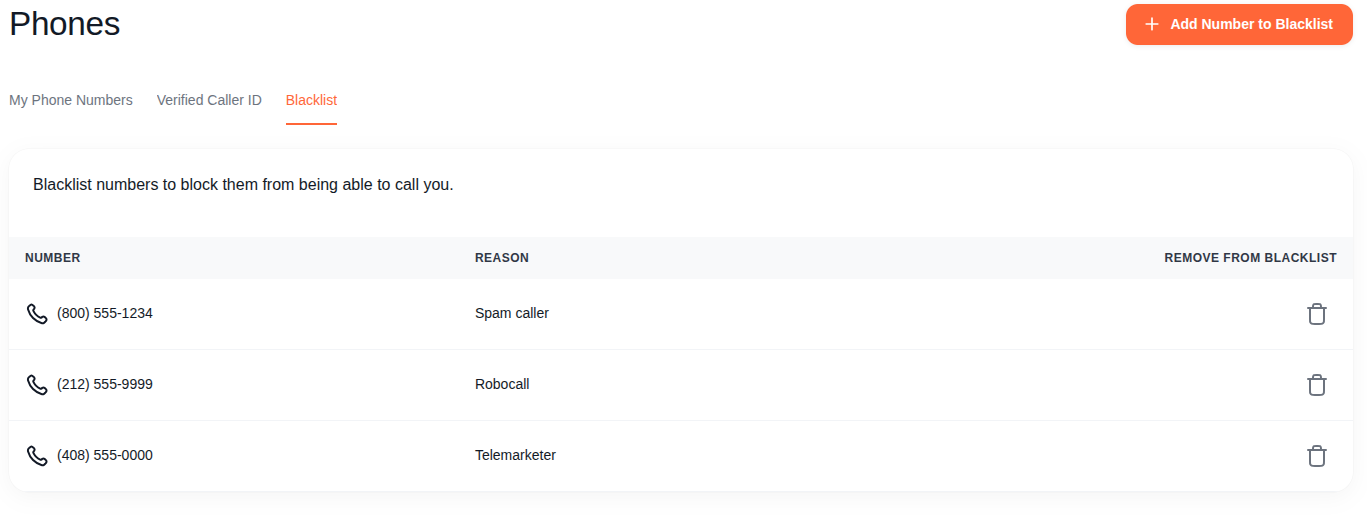
Blacklist Table
The table shows all blocked numbers:
- Number - The blocked phone number
- Reason - Why this number was blocked (e.g. "Spam caller", "Robocall", "Telemarketer")
- Remove from Blacklist - Click the trash icon to unblock the number
Adding a Number
- Click the + Add Number to Blacklist button (top right, orange)
- Enter the phone number to block
- Enter a reason (helps you remember why you blocked it later)
- The number is blocked immediately across all your phone lines - the caller hears a busy signal on their next attempt
Removing a Number
Find the number in the list and click the trash icon in the Remove from Blacklist column. The number is unblocked immediately and callers can reach you again.
The blacklist applies to all phone numbers on your account. You cannot block a number on just one line - it's all or nothing. If you're getting spam on a specific number, blocking the caller here stops them across your entire phone system.