

Connected apps: let Claude and other AI apps work in Tonet
Make a Tonet API key, connect Claude Code or another MCP app, and let it read your calls, texts and contacts, keep tasks, message your team and send texts as you.
A connected app is an AI app or a program of your own that works in your Tonet account as you. It signs in with a Tonet API key that you make in the dashboard. The key has your permissions and never more: what you can see, the app can see; what you can't, it can't.
Two ways to connect: an app that signs in (claude.ai, the Claude desktop app and other MCP hosts that add a server by URL) sends you to Tonet to approve it, and no key changes hands. An app that takes a key (Claude Code, Cursor, your own scripts) gets one you make in the dashboard. Either way, what the app may do is the same set of ticks, and either way it shows up in your Connected apps.
Sign in from an app
In claude.ai or the Claude desktop app, add a custom connector with the URL https://dashboard.tonet.ai/api/mcp and no key. The app sends you to Tonet.
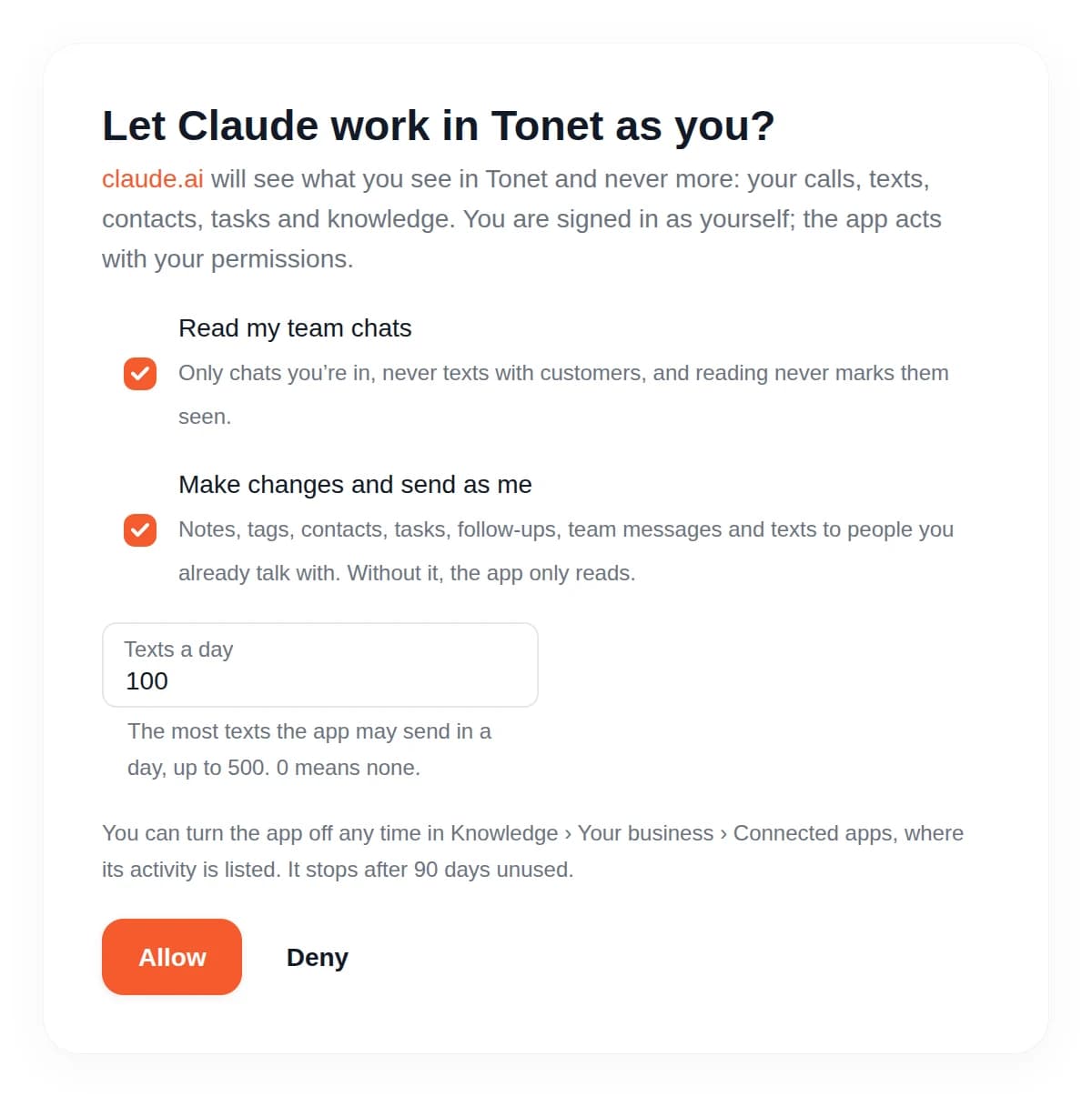
Sign in to Tonet if you aren't, then choose what the app may do. The ticks are the ones a key has (below). Allow sends you back to the app, connected. Deny sends you back with nothing.
The approval is listed in Connected apps like a key, marked "signed in from the app". Turn off there ends the app's access at once; the app asks you to sign in again the next time you use it.
Make a key
Open Knowledge in the left menu, pick the Your business tab and scroll to the bottom: Connected apps.
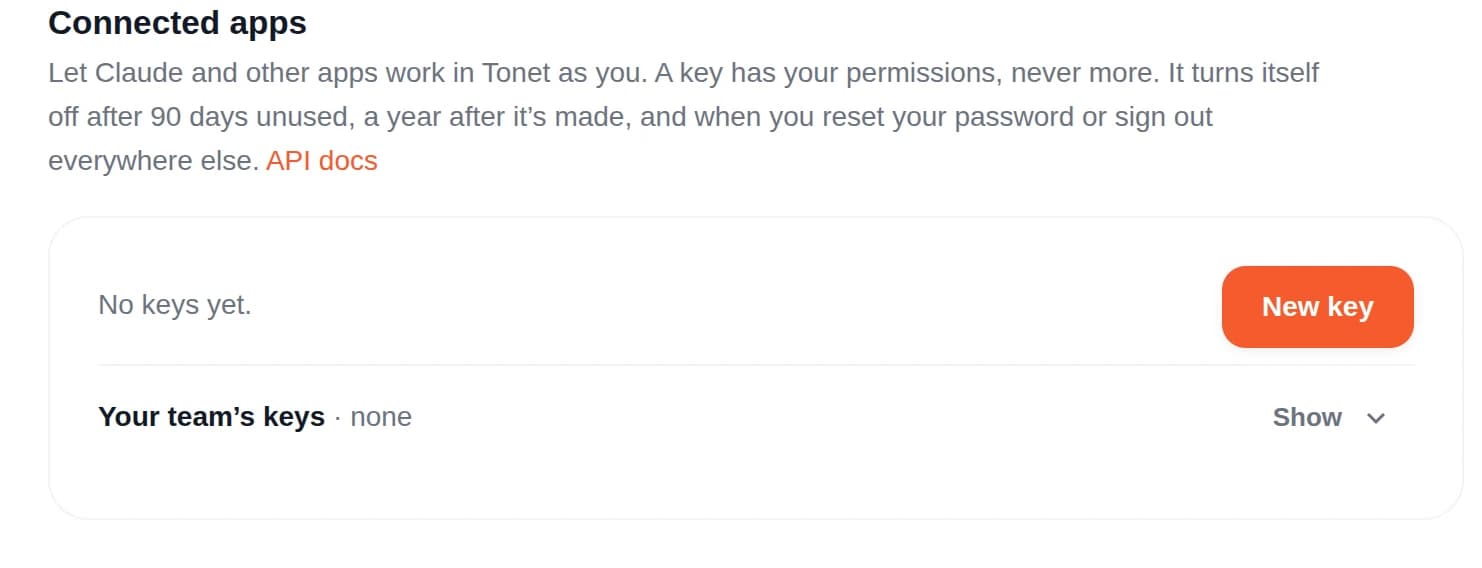
Click New key.
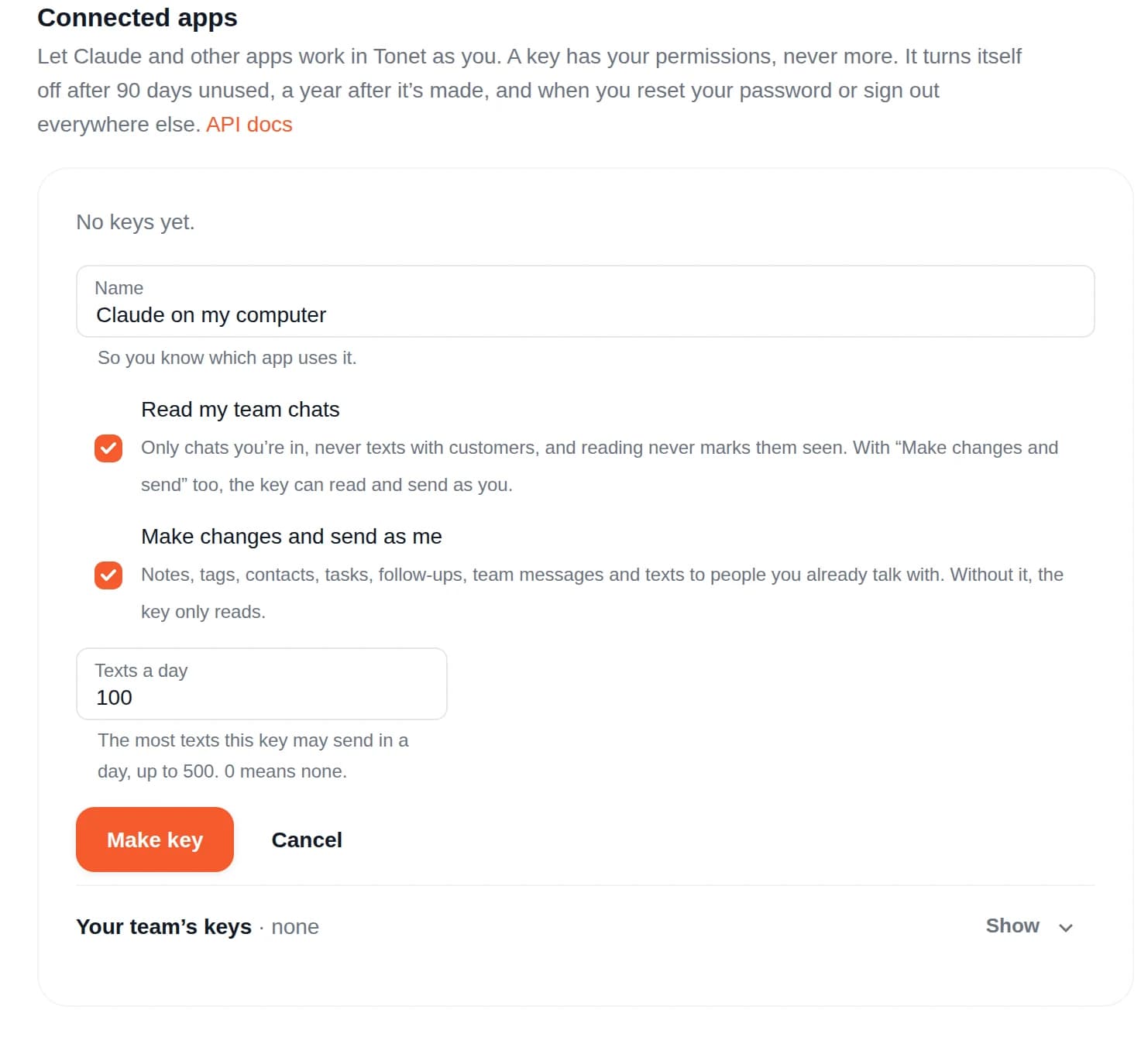
- Name it after the app that will use it, like "Claude on my computer".
- Tick Read my team chats if the app may read your team chat. Only chats you're in, never texts with customers, and reading never marks anything seen.
- Tick Make changes and send as me if the app may add notes and tags, edit contacts, keep tasks and follow-ups, message your team and send texts. Without it, the key only reads.
- With that tick, Texts a day sets the most texts the key may send in a day (100 unless you change it, 500 at most, 0 for none).
- Click Make key.
The key is shown once. Copy it now: Tonet keeps only a fingerprint and can't show it again.
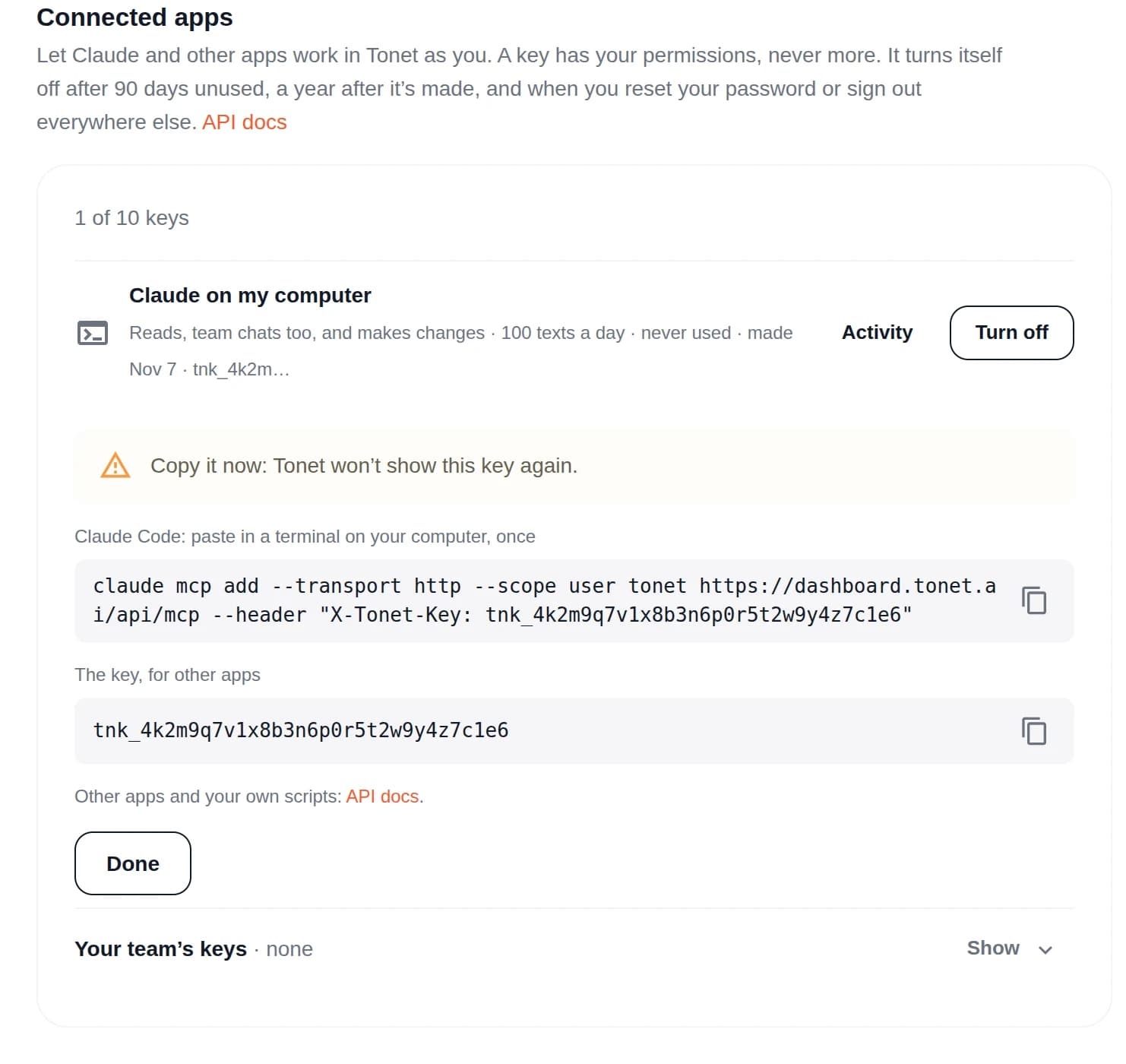
You get an email saying a key was made for your login. If it wasn't you, turn the key off and change your password: a new password turns off every key.
Connect your app
Claude Code: paste the command shown with the key in a terminal on your computer, once. It adds Tonet as an MCP server for your user.
Other MCP apps that take a key: the server is https://dashboard.tonet.ai/api/mcp. Send the key in the X-Tonet-Key header. The server has two tools: discover_capabilities finds what the app can do, execute_capability runs one of them.
Your own programs: every method is one URL. The API docs at dashboard.tonet.ai/developers list them with their inputs, and show how to call them. You need to be signed in to read them.
What a connected app can do
| Area | What it can do |
|---|---|
| Account and activity | Calls and texts over a period, what needs a reply, who is online, your numbers, ring groups and menus, account setup checks. Owners and managers: balance and charges. |
| Contacts | Find and read contacts, people and businesses, their notes and tags. With "Make changes": add notes, change tags, assign contacts, create and edit people and businesses. |
| Calls and transcripts | Find calls by number, date, outcome or words spoken, and read what was said. |
| Call quality and follow-ups | How calls went, and the follow-ups Tonet found in them. With "Make changes": accept a follow-up as a task, or dismiss it. |
| Tasks and reminders | Your tasks, reminders and calendar. With "Make changes": create and update them, snooze reminders. |
| Team chat | With "Read my team chats": the chats you're in. With "Make changes": send a teammate a message as you. |
| Texts | With "Make changes": one text at a time, from your own texting number, to someone the business already talks with: a saved contact, or a number with a text or a call on the account in the last 90 days. Blocked and opted-out numbers are refused. Each key has its daily limit. |
| Knowledge | Your business's saved answers, each with its source. |
| Number lookup | Who is behind a number, 5 cents a search, free when already looked up. |
It never deletes anything, never changes how your calls are routed, and never sends a text campaign. Those stay in the dashboard and in Ask Tonet, where you confirm each one.
Your keys
Each key in the list shows what it may do, when it was last used, when it was made and the first characters of the key (or that the app signed in).
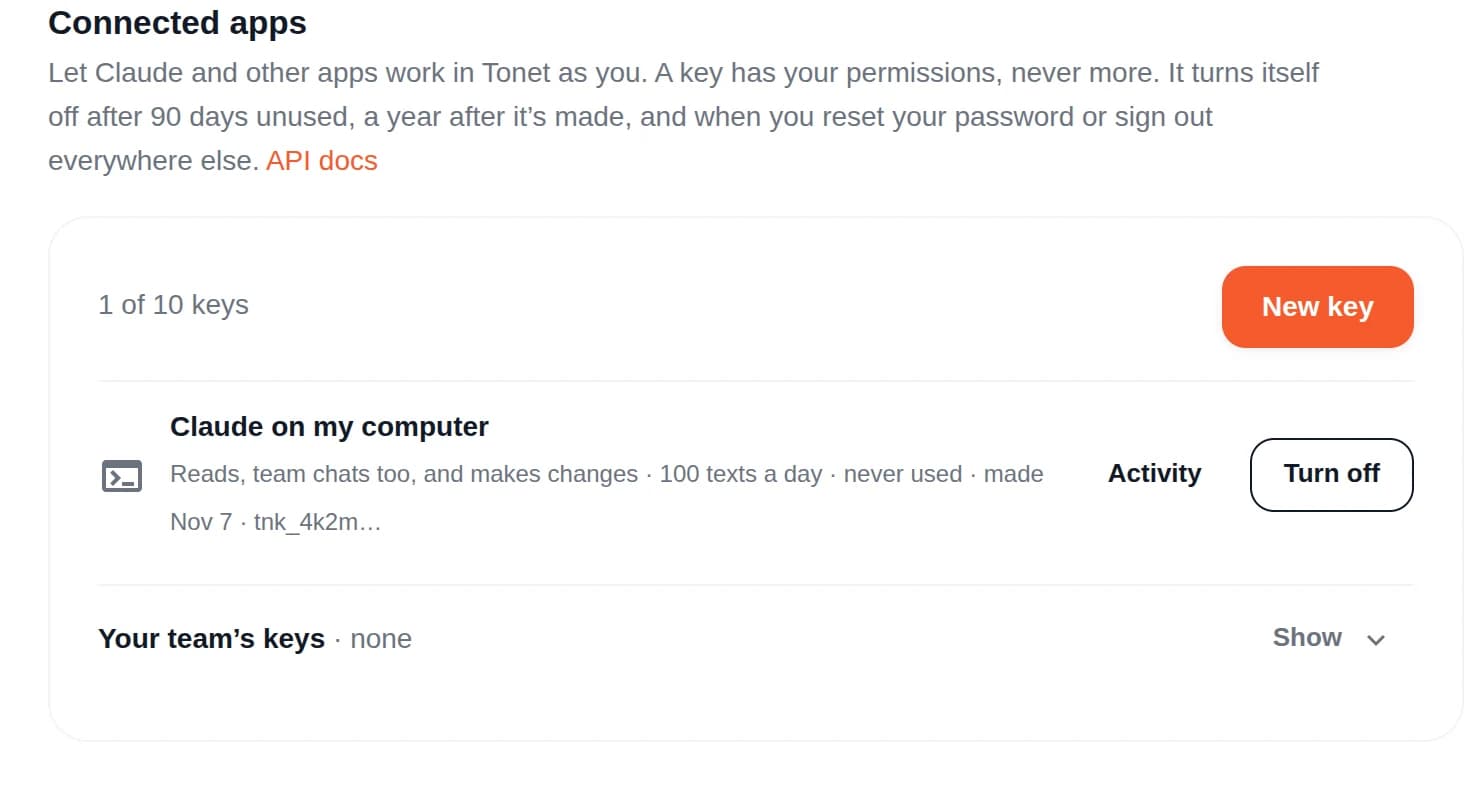
- Activity shows every call the key made in the last 90 days: what it ran, when, and from which address. A team chat read says which chat.
- Turn off stops the key at once. The app using it gets an error on its next call. Turning off asks you once.
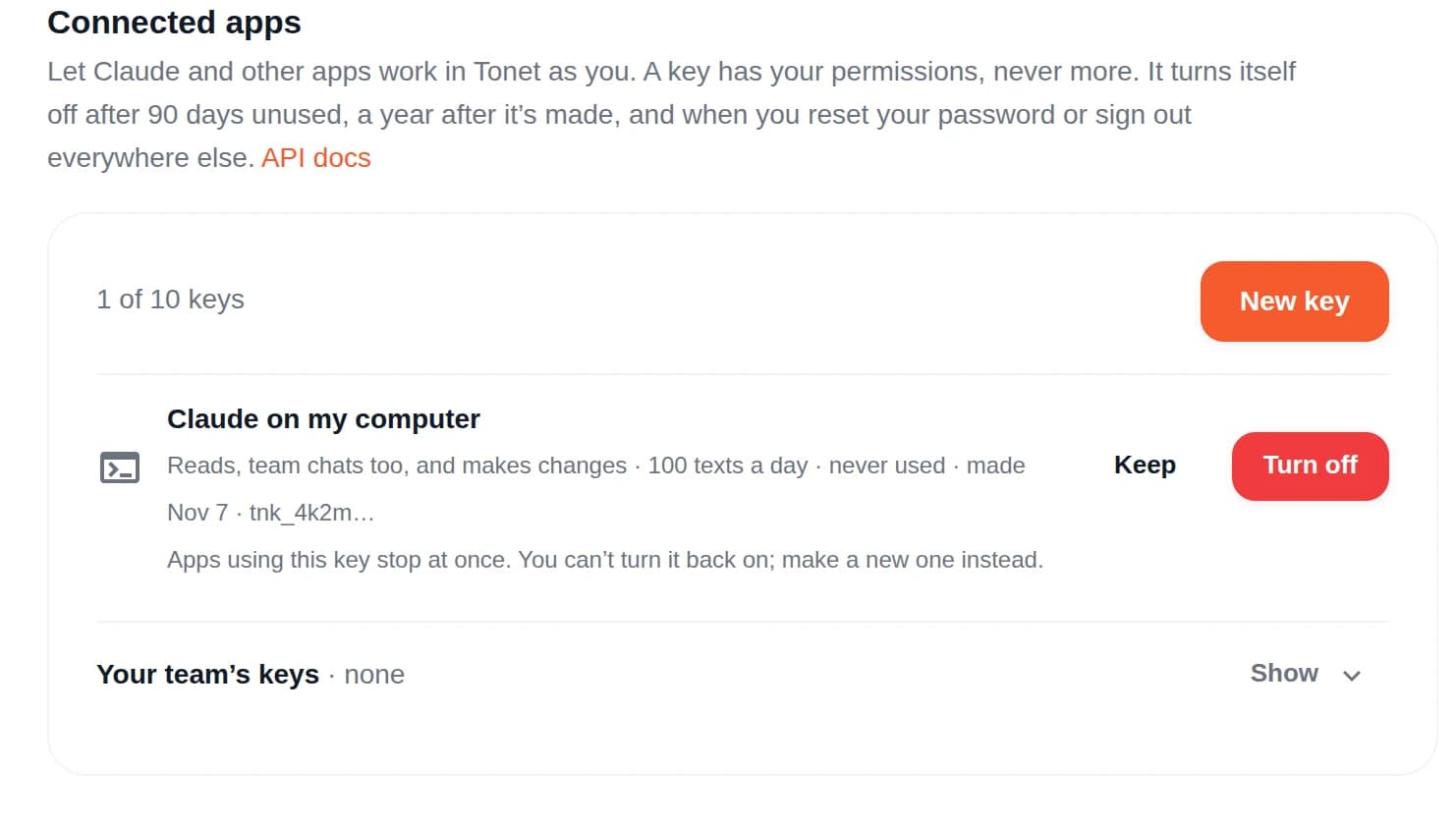
A key also turns itself off:
- after 90 days unused, and a year after it was made;
- when you reset your password or sign out everywhere else;
- when your login is removed from the account;
- while the account has AI turned off (a connected app is an AI provider too).
You can have up to 10 keys at a time.
Who can make keys
Owners and managers choose this for the whole account, in the same section, under the team's keys.
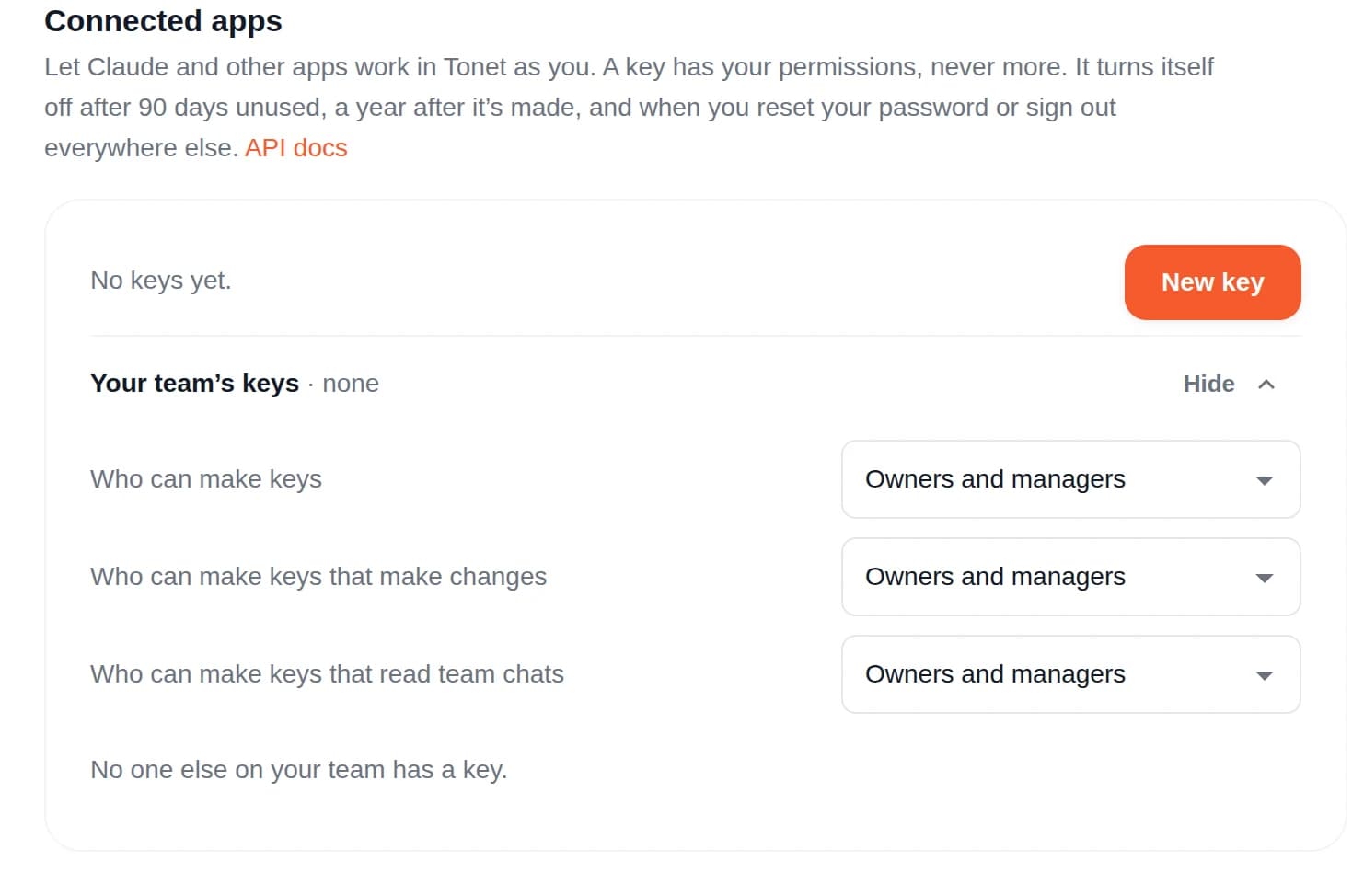
- Who can make keys: owners and managers, or everyone.
- Who can make keys that make changes: owners and managers, everyone who can make keys, or only owners.
- Who can make keys that read team chats: the same choices.
The choice holds on every call, not only when a key is made. A key whose person is no longer covered pauses until they are again; a key keeps working without the part its person may no longer use.
Owners and managers also see every key in the account, can turn off a teammate's key and read its activity. A manager never touches an owner's key.
Good to know
- A connected app sees text and call content, which may contain anything, including codes texted to your numbers. Treat what it reads as data, not instructions.
- Keep the key out of shared code and chat. If it leaks, turn it off; the app gets a new one in a minute.
- Up to 60 method calls a minute per key.