

Meetings: online team meetings, screen share and Tonet AI
Start or schedule a meeting in the dashboard, invite teammates and outside guests, share your screen, and let Tonet AI keep the action items and wrap-up.
Meetings are voice meetings in the dashboard. Talk, share your screen, chat, and read what's said as it's said. People from outside can join from their browser or by phone. There's no camera video.
Everyone on your account can use Meetings in the sidebar.
Start or schedule a meeting
- Go to Meetings and click Start now or Schedule.
- Type a Title.
- In People, pick teammates, or type an email address or phone number and pick it from the list.
- To schedule, set the Date, Start and End, then Repeats (Doesn’t repeat, Daily, Weekly or Monthly) and Remind everyone.
- Click Start meeting or Schedule meeting.
| Invited | Start now | Schedule |
|---|---|---|
| Teammates | A Join card on any dashboard page, once you join | A calendar invite by email, a notice in the bell, and a Join card at reminder time |
| Email address | An email with the link | A calendar invite with the link and how to call in |
| Phone number | A text with the link | A text, and another just before it starts |
A meeting holds up to 15 people, guests included. Your account can invite up to 100 outside people a day. Texts to guests are charged like any text you send.
On a task, Add meeting schedules one about it.
The Meetings page
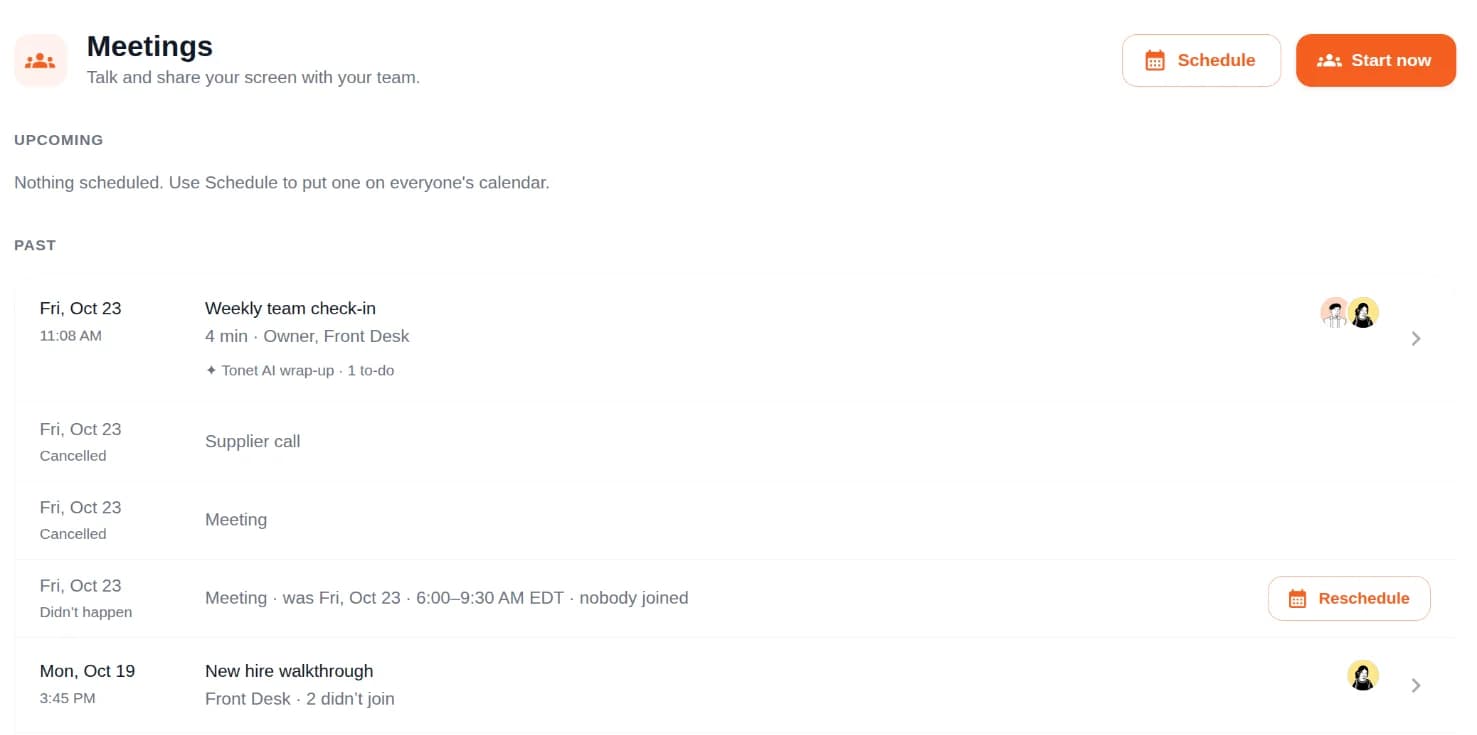
| Section | What's there |
|---|---|
| Happening now | Live meetings you're part of, with Join |
| Upcoming | Your scheduled meetings, the desk phone number, Copy link, and ⋯ to cancel |
| Past | Length, who came, and Tonet AI's wrap-up. Didn’t happen meetings have Reschedule. |
You can cancel only before a meeting starts. For a repeating one, pick Cancel this one or Cancel this and later ones.
Join a meeting
- Open the meeting from Meetings, the Join card, or its link.
- Tick Join muted if you like, and click Join meeting.
You talk through your Tonet softphone in the browser or the desktop app, so it has to be connected. From a desk phone, dial the number shown on the meeting, like 860030001.
A scheduled meeting opens 15 minutes before its start and closes at its end, unless people are still in. Anyone on your account with the link can join.
You can visit other pages while you're in. The top bar shows the meeting, with Back.
In the meeting
| Button | What it does |
|---|---|
| Mute | Mutes your microphone |
| Share screen | Shares a screen, window or tab. Present instead takes over from whoever is sharing. |
| Add people | Invites more people. See below. |
| Tonet AI | Switches Tonet AI on or off |
| Leave | Hangs up. You can come back while it's open. |
| End for everyone | Ends it for all. Nobody can rejoin. |
What’s said shows each person's words with their name and time, the chat, and Tonet AI's notes beside the line they're about. Type below it to message everyone.
While someone shares, their screen fills the room. Chat and Transcript open a side panel with Chat, Action items and Transcript tabs.
Words are written down from each person's own microphone in the browser or app. People on a desk phone or calling in are heard but not written down.
Action items: anyone in the meeting can add one, pick who does it, or remove one with ×. With Tonet AI on, it adds what you agree on.
Meters above What’s said show Mixed up on a fact, Agreeing and Decision made. Click Meter to add your own yes/no question.
Invite people from outside
Click Add people. Under Guests from outside:
- Copy copies the guest link. Copy invitation copies the link and call-in details.
- Lock the meeting stops new guests joining, by link or by phone.
- New link replaces the guest link. The old one stops working.
- Bring a call in moves a call you're on into the meeting. Click Bring in.
Guests open the link, type Your name, and click Join meeting. Then they wait. You'll see "… is waiting to join" with Let in and Not now, on any dashboard page if you host or were invited.
Guests see what's said and typed from when they joined, never before. They can message everyone and ask Tonet AI, but can't see a shared screen.
Let guests call in by phone
Go to Manage › Phones, click a number, open Route & settings, and in Go To pick Meeting call-in under Features. Or send a phone menu key there. Callers enter the meeting's 6-digit code, then wait to be let in.
Tonet AI in a meeting
Tonet AI comes on by itself while your account uses AI. Anyone in the room can switch it with Tonet AI, and the chat says who did.
- Ask it: type @Tonet, or start a sentence with "Tonet," out loud. Asking turns it on.
- Unasked, it speaks up only with something it looked up, with numbered sources. Click Reply, Useful, Speak less or Not useful on its messages.
- Guide it, like "@Tonet keep answers short". Remember for our future meetings keeps that.
- Off means off. It never reads what was said while it was off.
- With a guest in, it uses only what was said since they joined, and nothing about your business.
It's free: Tonet pays for it. It still counts toward your daily AI limits, and it can't join when AI is off for your account. See What Tonet AI does.
After the meeting
When everyone has left for 2 minutes, or someone clicks End for everyone, Tonet AI posts a Wrap-up: DECIDED, WHO DOES WHAT and STILL OPEN. This needs Tonet AI on and enough said while it was on. Ask "@Tonet wrap up" for one sooner.
Click Make 1 task (or Make 3 tasks) to turn open items into tasks, each for its person, on Overview.
Open a meeting under Past to read its wrap-up and everything said and typed. Meetings aren't recorded as audio.
Who can do what
| Action | Who |
|---|---|
| Start, schedule and join meetings | Everyone |
| Let guests in | Anyone on your account |
| Switch Tonet AI, add action items, lock the meeting | Anyone in the meeting |
| Cancel, End for everyone, New link | The host, owners and managers |
| Add meters | Owners, managers and admins |
| Read the transcript, chat and wrap-up, make tasks | The host, invitees and anyone who joined. Not other owners or managers. |
Next steps
- What Tonet AI does
- Desktop app: join and share your screen from the app
- Phone menus: add a key for Meeting call-in
- Network quality: when others can't hear you
Messages
Text customers from your business number and chat with your team in Tonet: files, saved messages, #tags, notes to self, edits, reactions and delivery.
Register for texting
Register your business for texting in Tonet. The SMS Registration form step by step, what each status means, the 10DLC fees, and texting while you wait.