Dialer & Calling
Make and receive calls right from your browser. The dialpad lives in the right side of the dashboard - click the dialpad icon in the top bar to open it. No extra software needed, just a browser and a microphone.
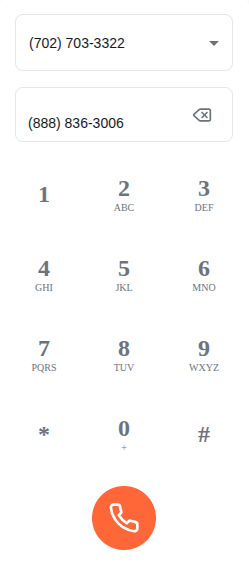
The Dialpad
The dialpad panel slides in from the right side of the screen when you click the dialpad icon in the top navigation bar. The icon is green when you're connected and ready to make calls.
Choosing Your Outbound Number
The dropdown at the top of the dialpad shows which phone number you're calling from. If you have multiple phone numbers, pick the one you want to show on the recipient's caller ID before dialing.
Dialing
Type a number using the on-screen keypad or your keyboard, then hit the green call button. You can also dial by:
- Clicking a phone number anywhere in the dashboard (contacts, call history, chat)
- Using Click-to-Call from any app on your computer
Conference
When you have two or more active calls going at the same time, a Conference button appears below the keypad. Click it to merge all your active calls into one conversation - everyone can hear each other.
Making a Call
When you place a call, a call window pops up at the bottom of the screen showing the status:
- Ringing - Waiting for the other person to pick up. You'll see "Outgoing" and a timer.
- Connected - They answered. The timer starts counting and you get full call controls.
- Failed - The call didn't connect. You'll see why (busy, no answer, declined, etc.) and the window closes after a few seconds.
Call Controls
Once you're on an active call, you have four controls:
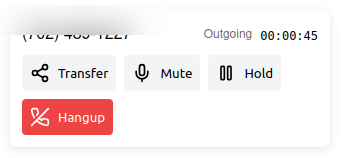
- Transfer - Hand the call off to a team member, group, or any phone number (see Transferring Calls below)
- Mute - Mute your microphone. The icon turns orange so you can tell at a glance. Click again to unmute.
- Hold - Put the caller on hold. They'll hear hold music. Click again to resume.
- Hangup - End the call
You can also tap the keypad buttons during a call to send tones - useful for navigating automated phone menus or entering PINs.
Receiving a Call
When someone calls one of your phone numbers, a call window appears at the bottom of the screen with the caller's number (and their name if they're in your contacts). You'll also hear a ringtone and get a browser notification if you've enabled them.
Two buttons:
- Pickup - Answer the call
- Hangup - Decline it
If you're on another call when a new one comes in, both call windows show at the bottom - you can pick up the second call and switch between them, or merge them into a conference.
Your browser needs microphone access to make and receive calls. You'll be asked to allow it the first time. If you accidentally denied it, click the lock icon in your browser's address bar and change Microphone to "Allow".
Transferring Calls
Click Transfer on any active call to open the transfer dialog.
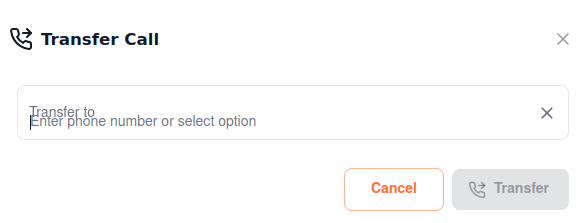
You can transfer to:
- A team member - Search by name, and the call rings their extension
- A group - The call goes to the group's ring strategy (all ring, round robin, etc.)
- Any phone number - Type in an external number to transfer the call outside your system
Pick the recipient and click Transfer. The call hands off and your session ends.
Multiple Calls
You can have several calls going at the same time. Each one gets its own call window at the bottom of the screen. From there you can:
- Switch between calls by putting one on hold and talking on another
- Merge into a conference - Click the Conference button on the dialpad to combine all active calls into one conversation
Notifications
The notification bell in the top bar keeps track of missed calls, voicemails, and messages. Click it to open the notification panel.
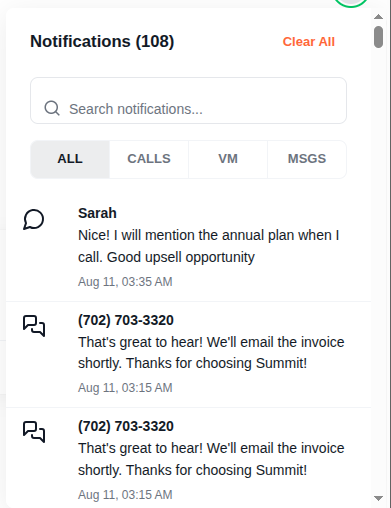
Filter by type using the tabs at the top:
- All - Everything in one feed
- Calls - Missed calls only
- VM - Voicemails
- Msgs - Text messages and team messages
Use the search bar to find a specific notification by name, number, or message content. Click any notification to jump straight to the relevant page - a missed call opens the contact timeline, a voicemail goes to call history, and a message opens the chat thread.
Click Clear All to dismiss everything.
Call Monitoring
Admins and managers can see all active calls across the team in real time from the Call Monitoring page. From there you can:
- Listen in - Silently monitor a call without the parties knowing
- Whisper - Talk to your team member without the customer hearing
See Call Monitoring for details.