Chat
Chat handles both SMS text messages to customers and internal direct messages between your team - all in one place.
SMS conversations are shared across your team. When a customer texts your business number, every team member with permissions on that number sees the conversation and can respond. No messages slip through the cracks because someone was on break or out sick - whoever is available picks it up. The customer just sees one number and one conversation.
Go to Chat in the sidebar to open your conversations.
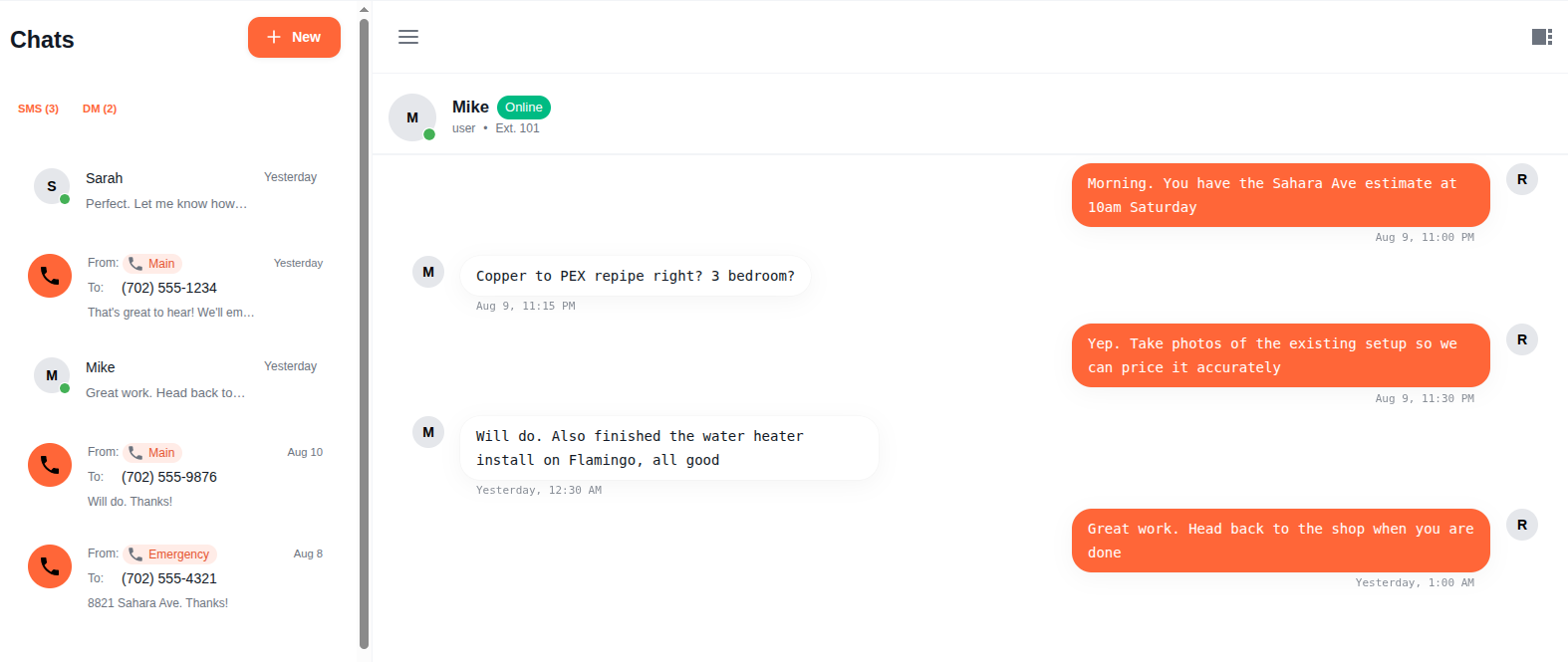
SMS vs DM
Toggle between the two modes using the Chat / SMS switch:
- SMS - Text messages sent and received through your Tonet phone numbers. Messages go over the carrier network to any phone number. Every team member authorized on the number shares the same conversation - so your whole team can see and respond to customer texts. Requires 10DLC verified numbers.
- Chat (DM) - Instant messages between team members on your Tonet account. No phone number needed - just search for a user by name or extension.
The sidebar lists all your conversations with SMS and DM filter buttons so you can show one type, the other, or both.
Starting a New Conversation
Click New in the sidebar to compose a new message.
SMS
- Toggle to SMS mode
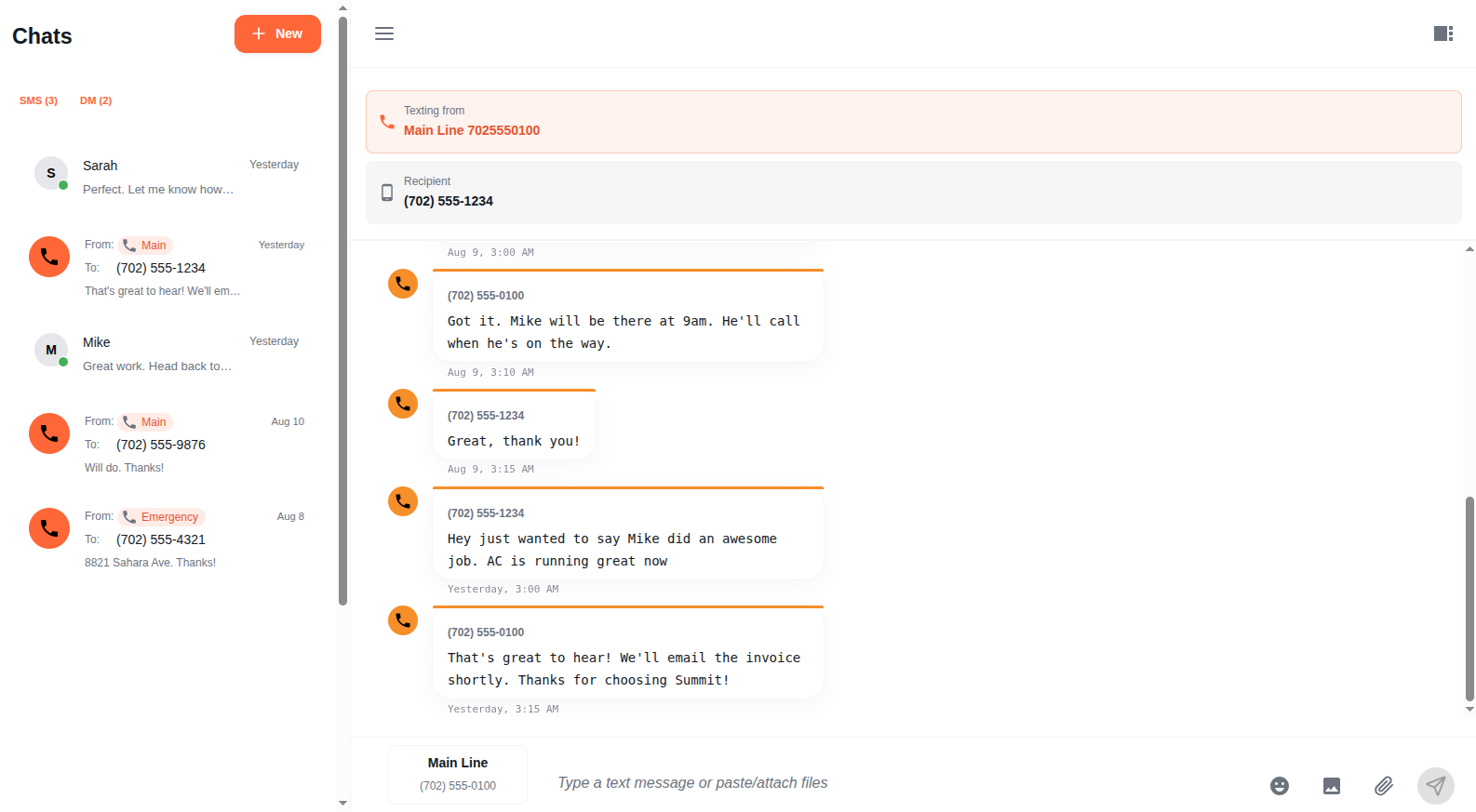
- From - Select which of your phone numbers to send from. Only verified numbers with SMS permissions appear here.
- To - Click Add recipient and enter the phone number you want to text
- Type your message and hit send
SMS currently supports one recipient per conversation. Your phone numbers must be 10DLC registered before you can send SMS. Numbers without 10DLC verification won't appear in the From dropdown.
DM (Direct Message)
- Toggle to Chat mode
- Search for team members by name or extension
- Select one or more recipients
- Type your message and hit send
Sending Messages
Type your message in the input field at the bottom and press Enter or click the send button.
Attachments
Attach files by clicking the image or file button, or paste a screenshot directly into the message input. You can also drag and drop files into the chat.
SMS/MMS limits:
- Up to 10 files per message
- 5 MB total size limit
- Supported types: images (JPEG, PNG, GIF), videos (MP4), audio (MP3, OGG), and documents (PDF, vCard)
DM limits are more generous - up to 100 MB for videos and 25 MB for documents.
Emoji and GIFs
Click the emoji button to open the picker. It includes a GIF search so you can find and send animated GIFs directly in the conversation.
Replies
Reply to a specific message to keep conversations organized. The reply shows a preview of the original message above your response.
Conversation Sidebar
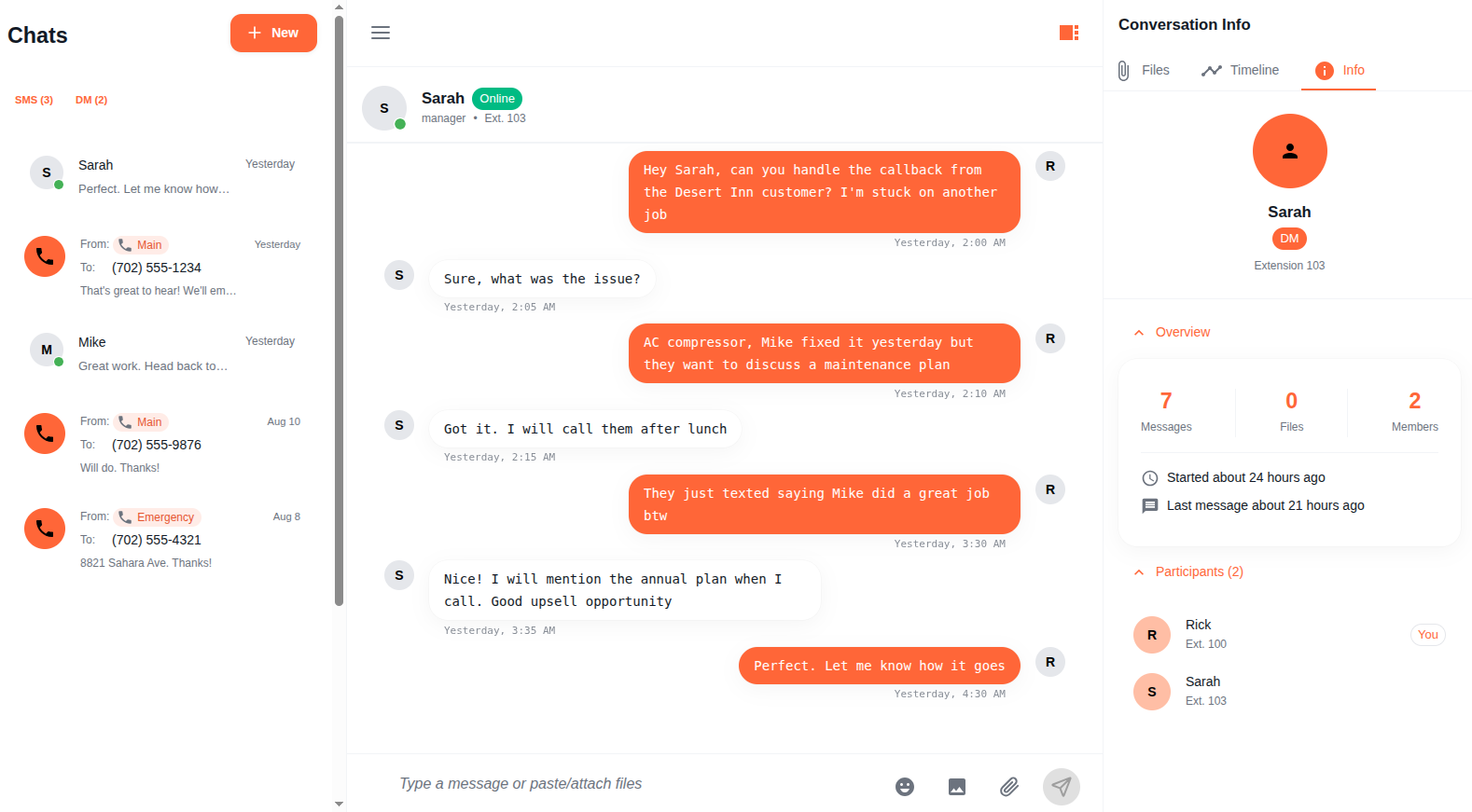
Click the sidebar icon in the top right to open additional panels:
- Files - All attachments shared in the current conversation
- Timeline - Bookmarked messages for quick reference
- Info - Conversation details and participants
Bookmarks
Bookmark important messages to find them later. Bookmarked messages appear in the Timeline panel with optional notes. Use this to pin key decisions, action items, or reference information within a conversation.
Outbound Phone Number
When sending SMS, the From selector at the bottom of the chat lets you switch between your verified phone numbers mid-conversation. The currently selected number is the one your messages are sent from.
Only phone numbers where you have outbound text permissions and that are 10DLC verified are available.