Users
Users are the people on your team who make and receive calls, send SMS, and access the dashboard. Each user gets their own extension, login credentials, and SIP settings for connecting desk phones or softphones.
Go to Manage > Users to see your team.
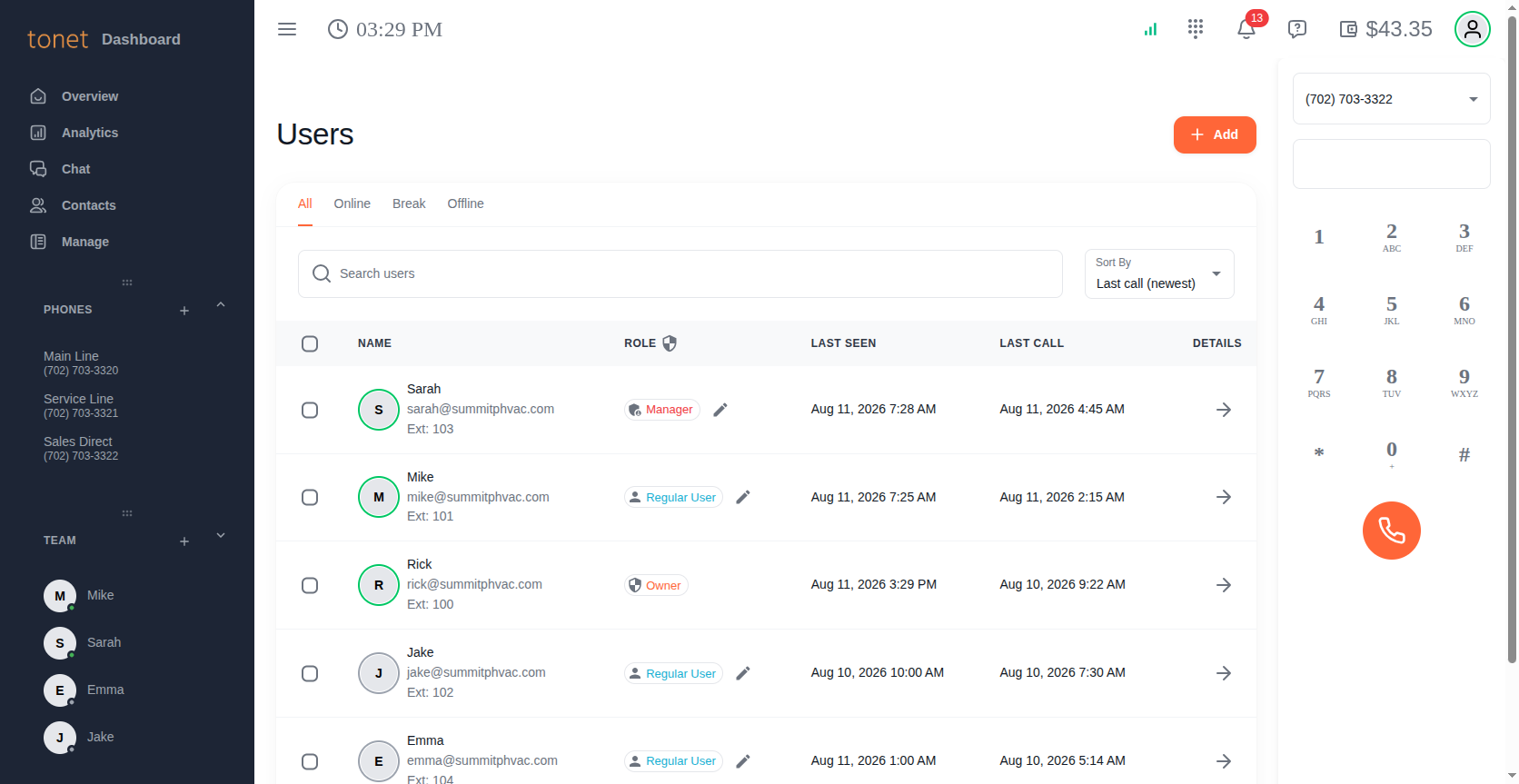
User List
The table shows each user with:
- Name - Avatar with a colored border indicating status (green = online, orange = on break, grey = offline), display name, email address, and extension number
- Role - Their permission level: Owner, Manager, or Regular User. Managers and owners can click the pencil icon next to the role badge to change it inline. See Roles below.
- Last Seen - When the user was last active on the dashboard
- Last Call - When the user last made or received a call
- Details - Arrow icon to open the user detail page
Filtering and Search
Use the tabs at the top to filter by status:
- All - Every user on the account
- Online - Currently logged in and available
- Break - Logged in but set to break status
- Offline - Not currently logged in
The Search users box filters by name, extension, or email. Use the Sort By dropdown to sort by Last call or Last seen (newest or oldest first).
Checkboxes on the left allow you to select multiple users for bulk actions like deletion (managers and owners only).
Creating a User
Click + Add in the top right corner to add a new team member.
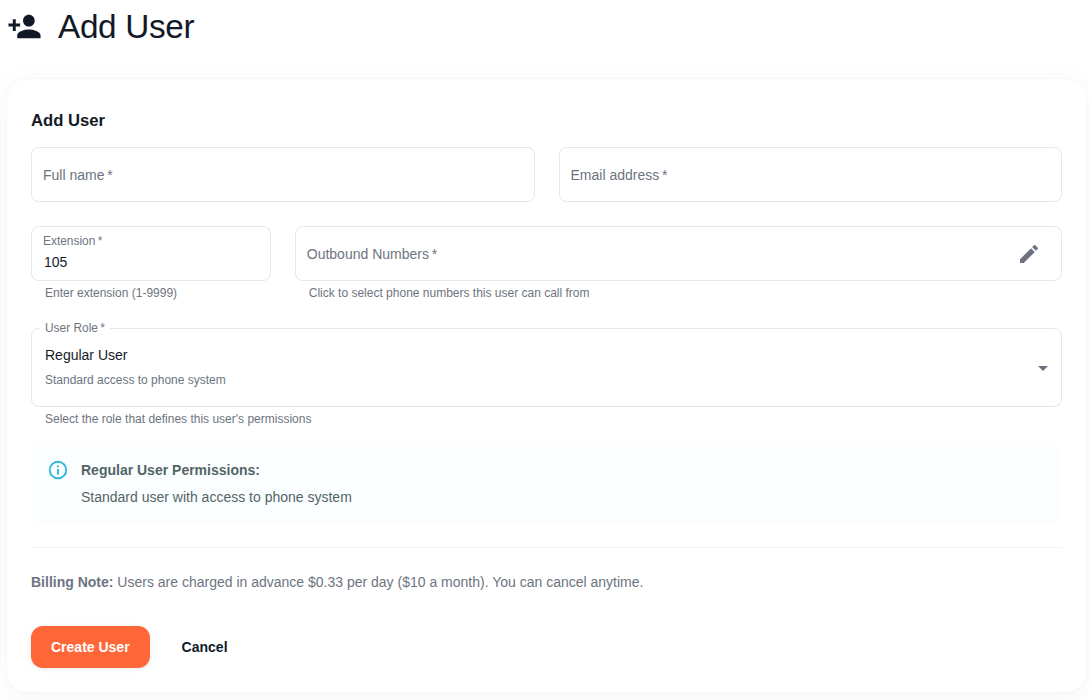
Fill in the following fields:
- Full name - The user's display name shown in the dashboard, call logs, and team list
- Email address - Used for login and notifications (password reset, voicemail-to-email). Must be unique across your account.
- Extension - A number between 1 and 9999. The form automatically suggests the lowest available extension. If you enter an extension that's already taken, the form shows which user has it.
- Outbound Numbers - Click the pencil icon to select which phone numbers this user can make calls from. You must assign at least one.
- User Role - The user's permission level. See Roles for what each role can access.
Pricing: Users are charged daily based on your plan. You can cancel anytime - delete the user and the daily charge stops immediately. No contracts.
Click Create User to add them. A confirmation email is sent to their email address with a link to set their password. Once they set their password, they can log in to the dashboard (opens in a new tab) and the mobile app.
User Details
Click the arrow icon on any user in the list to open their detail page.
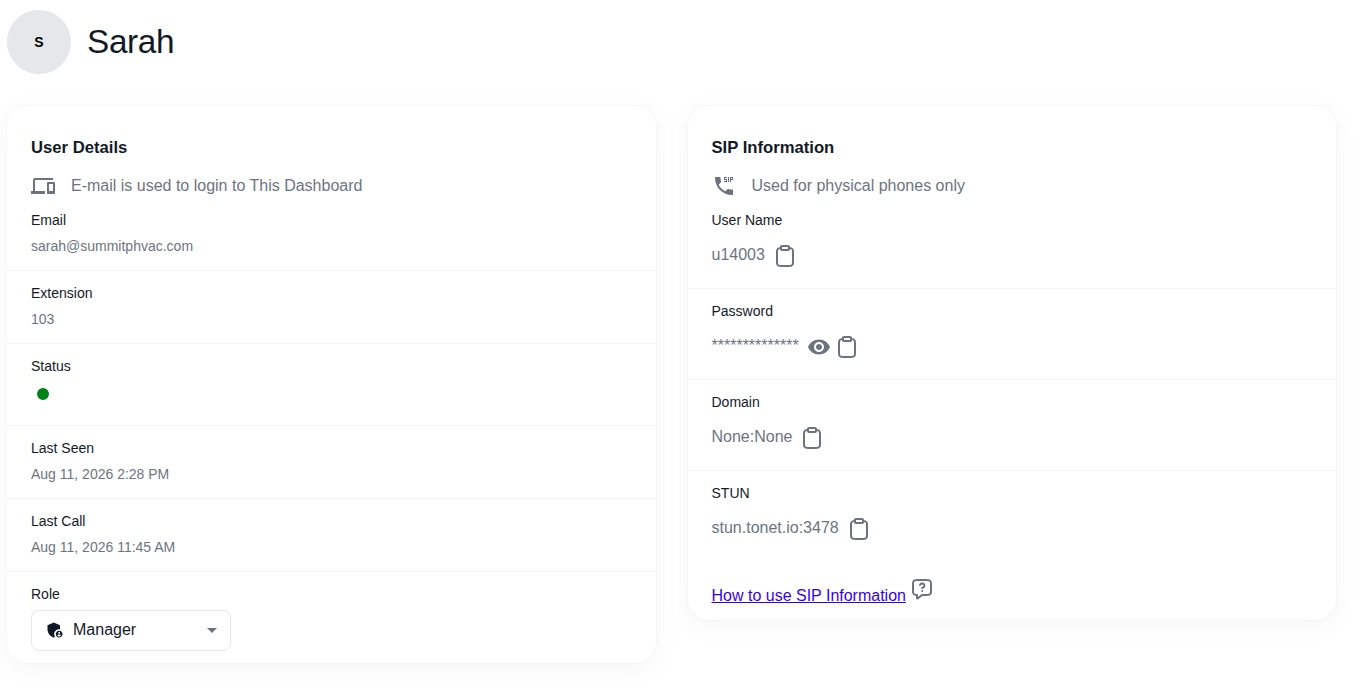
The detail page has two panels side by side, plus an activity section below.
User Details Panel
- Email - The user's email address, also used to log in to the dashboard.
- Extension - Their extension number
- Status - Green dot for online, orange for on break, grey for offline
- Last Seen - When they were last active
- Last Call - When they last had a call
- Role - Their current role shown as a dropdown. Managers and owners can change it directly from here.
SIP Information Panel
Use these credentials to connect physical desk phones or third-party softphone apps to Tonet.
- User Name - The SIP username for this extension
- Password - The SIP password (hidden by default, click the eye icon to reveal)
- Domain - The SIP server address
- STUN - The STUN server for NAT traversal (e.g. stun.tonet.ai:3478)
For more on desk phone setup, see IP Phones.
SIP credentials are visible to administrators and owners, or to a user viewing their own account. Regular users can only see their own SIP information.
Activity
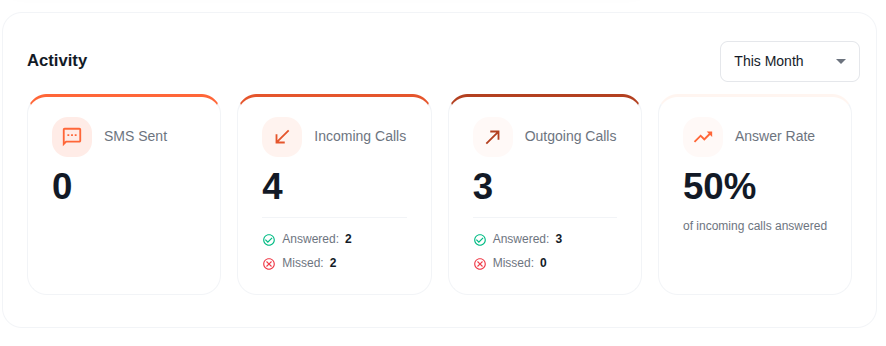
Below the detail panels, the Activity section shows the user's call and messaging stats. Use the dropdown in the top right to switch between Today, This Week, or This Month.
Four cards show:
- SMS Sent - Number of text messages sent
- Incoming Calls - Total incoming calls, with answered and missed breakdown
- Outgoing Calls - Total outgoing calls, with answered and missed breakdown
- Answer Rate - Percentage of incoming calls that were answered
Editing a User
From the user list, click the pencil icon next to a user's role to change their role inline. To edit other fields (name, email, extension, outbound numbers), go to the user's detail page and click Edit.
Deleting a User
From the user list, select users using the checkboxes and click Delete. Deleting a user removes their extension and stops the daily charge immediately.
Deleting a user is permanent. Their call history remains in Analytics, but their extension becomes available for reassignment.
Roles
Tonet has three user roles that control what each person can access:
Owner
Full access to everything. The account owner is the person who signed up for Tonet. The owner cannot be demoted or deleted - their role is locked with a shield icon.
Manager
Full system access including billing, account settings, and all user management. Can create users of any role and change roles for anyone except the owner.
Regular User
Standard access to the phone system. Can make and receive calls, send SMS, and view their own activity. Cannot access any admin features under Manage, and cannot see billing or account settings.
Who can create users? Managers and owners can create users from the Users page. The roles available in the dropdown depend on your own role - managers can assign any role, but lower roles have restrictions.