

Knowledge: what Tonet knows about your business
Knowledge holds what callers ask and what your team tells them. Where it learns from, how to ask or add an answer, and who can change it.
Knowledge is what Tonet knows about your business: what callers ask, and what your team tells them. Tonet learns it from your calls, texts, websites and Tonet setup. Everyone on your team can read it, and Ask Tonet looks there first when you ask about your business.
Open Knowledge in the left menu. It has three tabs:
| Tab | What's there |
|---|---|
| Answers | A box to ask or add anything, and what your team tells callers, most asked first |
| Sources | Where Knowledge learns from, in order |
| Your business | What Tonet knows about your business, and the switch that turns AI on for your account |
Who can do what
| Role | In Knowledge |
|---|---|
| Owner, Manager, Administrator, Regular User | Read the answers and where they come from, ask or add in the box, and hear the calls they're allowed to open |
| Owner, Manager | Also answer questions nobody could answer, add, remove and order sources, change Your business, and see answers marked team only |
Answers marked team only are about how your business runs, like a supplier or the software you use. Only owners and managers see them.
Don't see Knowledge? It's hidden for accounts that turned off AI or call recording when they signed up. If your account turned off AI, an owner or manager can turn it back on in Manage › Account, on the AI tab.
Where Knowledge learns from
- Your calls. After Tonet summarizes a call, it adds what your team told the caller.
- Your texts with customers.
- What your team types in the box on Answers.
- Your Tonet setup: schedules, calendar days, number names and menus. Change a setting and the answer changes with it.
- Your websites and PDFs. Tonet reads them every day and quotes them as they are, with a link and a date. It doesn't rewrite them into answers.
Your team's own chat isn't read. Tonet leaves out passwords, PINs, card and bank numbers, Social Security numbers, health details, your sales and revenue, and anything about one person.
Which answer comes first: what your team types and your Tonet setup, then what your team says on calls and in texts. When your team hasn't answered something, Tonet quotes your pages and PDFs, the highest on Sources first.
Ask a question or add an answer
- Open Knowledge. You're on Answers.
- Type in Ask or add anything about your business… and press Enter.
| You type | What Tonet does |
|---|---|
| A question, like "Do you work on Saturdays?" | Answers from what your team says, sometimes with a sentence to say and a copy button. If your team hasn't said, it quotes your pages, with a link and the page's date. If nothing says it, it tells you so and links the closest source. |
| A fact, like "We're closed on Thanksgiving." | Saves it as your team's answer and shows Saved. Click Undo to take it back. |
- Anyone on your team can add a fact.
- As you type, the list below shows only the answers that match.
- To correct an answer, type the right one. What your team types is listed before what Tonet heard on calls.
Read what your team tells callers
On Answers, What your team says has one row for each thing callers ask about, most asked first. Each row shows the topic, the answer, and when it applies. also on links a page or PDF that says it too.
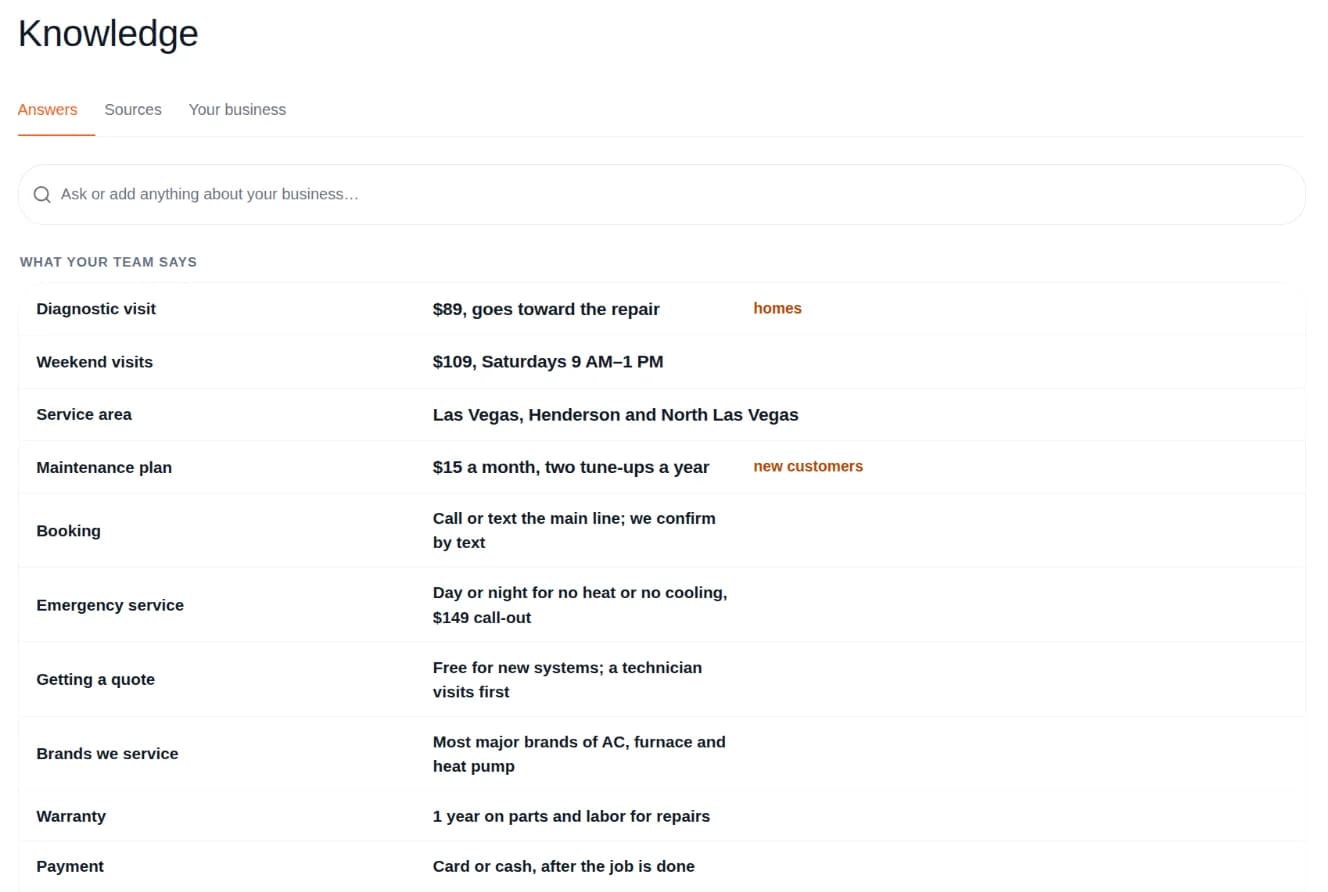
Click a row to see:
- What to say
- Each answer Tonet has, with where it came from: a page, calls, texts, or typed by your team. older marks an answer that's out of date; heard once marks one said on a single call that differs from the rest.
- Hear the … call, for the calls you're allowed to open. It opens the call at the moment it was said.
- Asked … ways: how callers put the question
Answer questions nobody could answer
Owners and managers only.
When a caller asks something nobody on your team could answer, Tonet tells owners and managers once, so one answer covers everyone. The question shows in two places:
- The bell, on the Knowledge tab
- Knowledge › Answers, under Needs you
To answer it:
- Click the question. Hear the call opens the call at the moment it was asked.
- Type in Tell us what callers should hear…, in your own words, and press Enter.
- Tonet writes it as one line under Callers will hear. Click Save, or Change to try again.
The answer is in Knowledge right away, marked as from your manager, and Ask Tonet uses it.
Not something your business answers? Click Not something we answer. Tonet won't raise that question again.
Tonet raises at most one new question a day.
Add a website or PDF
Owners and managers, on Knowledge › Sources.
- Click Add a source.
- Paste a link, like yourbusiness.com/pricing/.
- Under What should Tonet read?, pick Just this page, This section (everything under that address), or Whole site.
- Click Add.
Tonet reads it within 15 minutes, then every day.
- You can add up to 10 websites, pages and sections.
- PDFs can be up to 8 MB.
- For a section or a whole site, click Choose pages › to switch pages on or off.
Tonet also finds your website by itself: on your texting registration, from your email address, or from your calls. A site found from your email or your calls is read only when it shows it's yours, for example by showing your number or your business name.
If Tonet can't read a page, its row says why. Some sites turn away automatic readers, and Tonet doesn't get around that. Type the answers you need on Answers instead.
Change the order or remove a source
The list on Sources is numbered. What your team says stays at the top. Your pages and PDFs follow, and Tonet quotes the higher one first.
Owners and managers can:
- Move a source: drag it, or use the up and down arrows.
- Go back to Tonet's order: click Reset to Tonet's.
- Do more: open the source's ⋯ menu.
| Item | What it does |
|---|---|
| Move to the top | Puts it first among your pages |
| Background only | Uses it only when nothing above it answers |
| Read it again now | Tonet reads it again within 15 minutes |
| New pages wait until I switch them on | For a section or a whole site: new pages aren't read until you switch them on |
| Remove | Tonet stops reading it and forgets what it said |
A website you remove isn't found again.
Change what Tonet knows about your business
The Your business tab has:
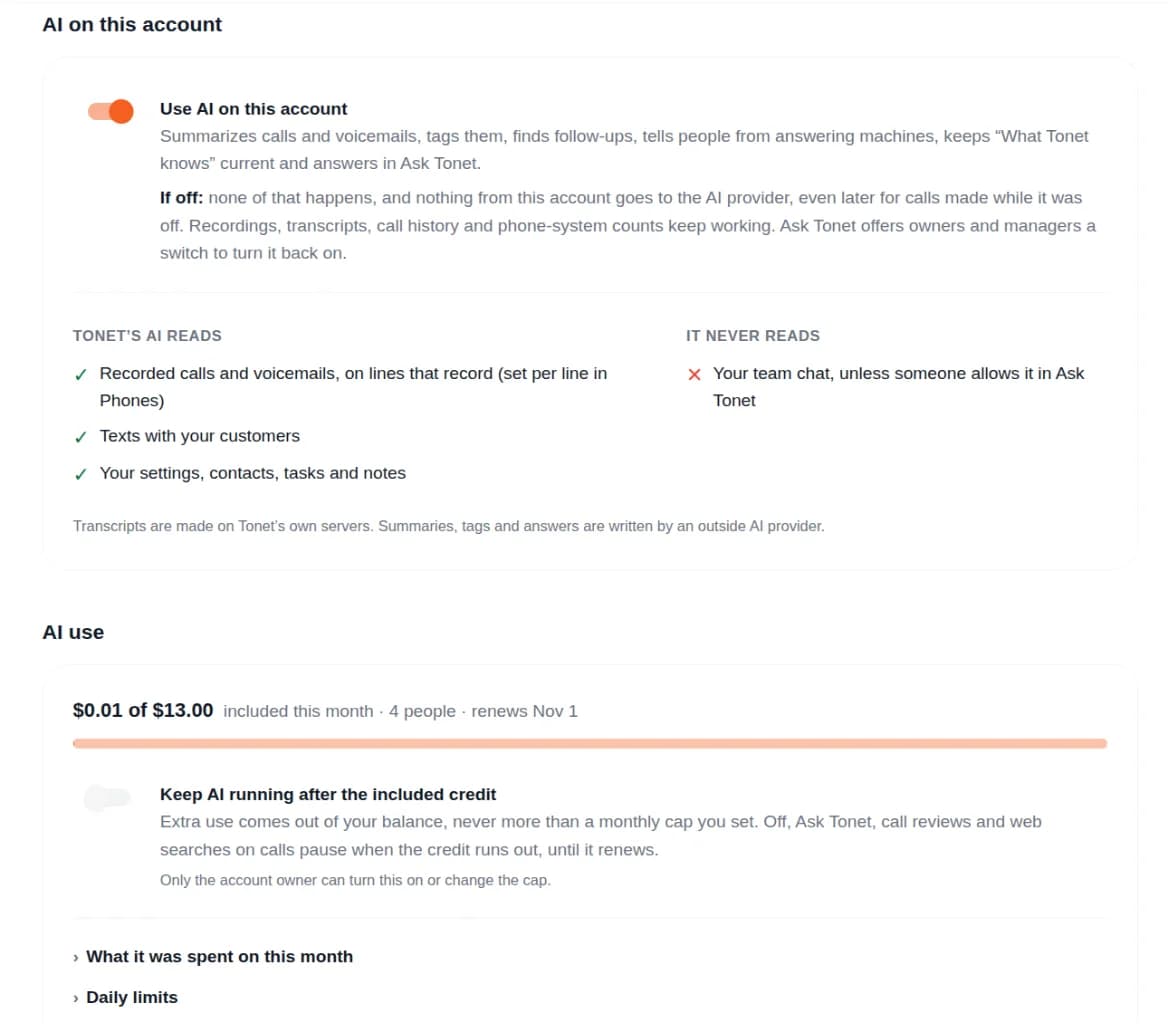
| Section | What it's for |
|---|---|
| What Tonet knows about your business | A summary Tonet writes from your settings and your calls. Ask Tonet uses it. Fix anything that's wrong. |
| What to listen for on calls | Topics Tonet tags on your calls, like financing questions |
| AI on this account | The Use AI on this account switch |
| AI use | How much AI your account has used, and its limits |
Owners and managers change these. Only they see AI use.
A part of the summary you edit is marked Edited, and Tonet stops changing it. Click Let Tonet update this to hand it back.
With AI off, Knowledge learns nothing and its box doesn't answer.
What changed, and who changed it
Click What changed, and who changed it under the summary. It lists changes to what Tonet knows, newest first, grouped by day:
- Edits to the summary, and notes removed from it
- What Tonet remembers about your business, a phone line or you, and its suggestions someone accepted or dismissed
- Tags, outcomes, notes and summaries changed on a call, with Open call
- What Tonet noticed that someone acted on or dismissed
Each change says who made it (you, a teammate or Tonet) and when. Click one to see Before and After. Click Show older changes for more. Changes are kept for as long as the account exists.
| Role | Sees |
|---|---|
| Owner, Manager | Every change on the account. Pick Everyone, People or Tonet to filter. |
| Administrator, Regular User | Only their own changes |
What Tonet remembers about one person shows only to that person.
The list doesn't undo anything. To change something back, edit it again, using what Before says.
Next step
Ask Tonet a question about your business, or listen to your calls. Owners and managers can find the rest of the account's settings in Account.
Ask Tonet
Ask Tonet is the chat button at the bottom right of the dashboard. Get answers, have it do tasks in your account, or talk to Tonet's support team.
From Verizon
Get your Verizon Number Transfer PIN (port-out PIN) for a personal or business account, turn off Number Lock, and move your number to Tonet.